Copy Type: Complete Project
Code Insight 6.14.2 SP2
Project owners are the only ones with permission to copy projects.
|
1.
|
Log into Code Insight as an Owner. |
|
2.
|
Click the My Projects button on the Main menu. |
|
3.
|
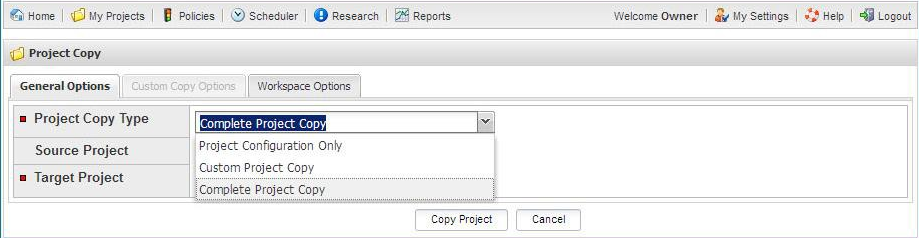
Select a project from the list and click on the Project Copy icon ( ) associated with that project. The Project Copy page appears. ) associated with that project. The Project Copy page appears. |
|
4.
|
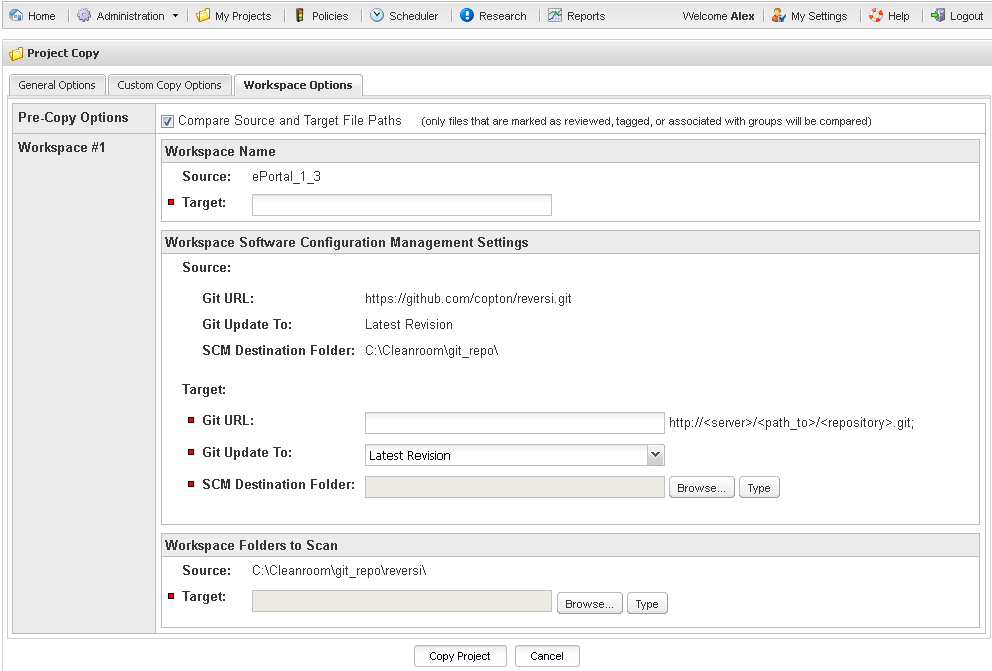
Select Complete Project Copy from the Project Copy Type pull-down menu. The Workspace Options tab appears. |
|
5.
|
In the Workspace Name section, enter a name in the Target field. |
|
6.
|
In the Workspace Folders to Scan section, click on the Browse or Type button: |
|
•
|
The Browse button opens a file system tree for the Scan Server on which you are working. |
|
•
|
The Type button opens a dialog where you can enter the name of the input scan folder you wish to use. |
|
7.
|
On the Workspace Options tab, the Compare Source and Target File Paths checkbox is checked by default. Only files marked as reviewed, tagged, or associated with groups will be compared. Files that have not had any of these operations performed on them are not compared by the pre-copy analysis operation.This pre-copy codebase comparison lets you: |
|
•
|
Know which files from the source codebase are not present in the target codebase: This means that files were removed after the codebase branching operation was performed. |
|
•
|
Know which target files are different from the source with the same relative path: This means that the target files were modified after the codebase branching operation was performed. |
|
•
|
Address file issues before the actual project copy, if appropriate. |