Configuring Dynamic Selection of a Request Reviewer
This Code Insight feature (also called the People Picker) allows a user to select an individual (such as a manager) as the designated assignee for a component request at a particular review level. For example, your company’s business logic might dictate that the first review on a request for an OSS component be performed by the requester’s direct manager. Code Insight supports this scenario by allowing the workflow project owner to designate a form field that enables the selection of an appropriate reviewer for a particular review level. At runtime, the requester can then use this field to search a pool of managers in order to choose one assignee to continue the review process.
The following procedure provides an example of how to update the short request form (request_form_short.sql) and long request form (request_form_long.sql) for your database to add a reviewer selection field. Both scripts are located for your database type in the dbScripts directory of your Code Insight installation directory.
To configure a new field for the dynamic selection of a reviewer:
| 1. | Execute the following appropriate update scripts in your database to display a reviewer selection field for a specific review level on the short or long request form. Note the following about the scripts: |
| • | The attribute name in the example is PeoplePickerList; the displayed field name is People Picker List. However, you can provide your own names for the attribute and field. |
| • | The attribute must have an INPUT_TYPE and TYPE value of P. |
Short Form Scripts
Run both scripts to update the short request form with a viewer selection field:
INSERT INTO PAS_REQ_DEF_ATTR (ID_,REQUEST_DEFINITION_ID_,STAGE_ID_,SEQUENCE_,NAME_,DISPLAY_TEXT_,INPUT_TYPE_,TYPE_,HELP_TEXT_) VALUES (1111,1,1100,13,'PeoplePickerList','People Picker List','P','P',NULL);
INSERT INTO PAS_REQ_DEF_ATTR_ACCESS_RULE (ID_, REQ_DEF_ATTR_ID_, ACCESS_TYPE_, WORKFLOW_ROLE_ID_, REVIEW_LEVEL_, REVIEW_LEVEL_STATE_) VALUES (111101,1111,'E',1,0,'E');
Long Form Scripts
Run both scripts to update the long request form with a viewer selection field:
INSERT INTO 6110db.PAS_REQ_DEF_ATTR (ID_,REQUEST_DEFINITION_ID_,STAGE_ID_,SEQUENCE_,NAME_,DISPLAY_TEXT_,INPUT_TYPE_,TYPE_,HELP_TEXT_) VALUES (2112,1,2100,12,'PeoplePickerList','People Picker List','P','P',NULL);
INSERT INTO 6110db.PAS_REQ_DEF_ATTR_ACCESS_RULE (ID_, REQ_DEF_ATTR_ID_, ACCESS_TYPE_, WORKFLOW_ROLE_ID_, REVIEW_LEVEL_, REVIEW_LEVEL_STATE_) VALUES (211201,2112,'E',1,0,'E');
| 2. | As an administrator, create a user list to which to point the new attribute. For instructions on creating a user list, refer to the “Administration Menu: Users Option” topic in the online help or in the Code Insight User Guide. This list must contain the specific users (for example, managers) from which you want the person creating the request to select a reviewer. Be sure that the User List Type is set to Reviewer. |
For purposes of this example, the user list created is called ReviewList.
| 3. | In your Code Insight installation directory, open the config/core/core.properties file in a text editor, and add the following line to identify the new property: |
<REQUEST_ATTRIBUTE_NAME>.filtered.userlist = <USER_LIST_NAME>
where:
| • | <REQUEST_ATTRIBUTE_NAME> is the name of the attribute (the <NAME> value used in the script in step 1). |
| • | <USER_LIST_NAME> is the name of the user list created in step 2. |
For this example, you would enter the following:
PeoplePickerList.filtered.userlist = ReviewList
| 4. | (Optional) Note that, by default, requesters can select their own name from this list of potential reviewers when it is opened in the Code Insight user interface. If you want to disable the ability of requesters to select themselves as reviewers (for security reasons, for example), set the following property to true in core.properties: |
people.picker.disable.self.approve=true
With this configuration, when requesters attempt to select their own name, they receive a message stating their inability to do so and forcing them to make another selection.
| 5. | Restart the Code Insight Core Server. |
| 6. | In Code Insight user interface, open a project, navigate to the appropriate “review level” tab on the Project Details page, and select the newly created field from the Select request form field containing reviewers for this review level drop-down list. In this example, you would select People Picker List. |
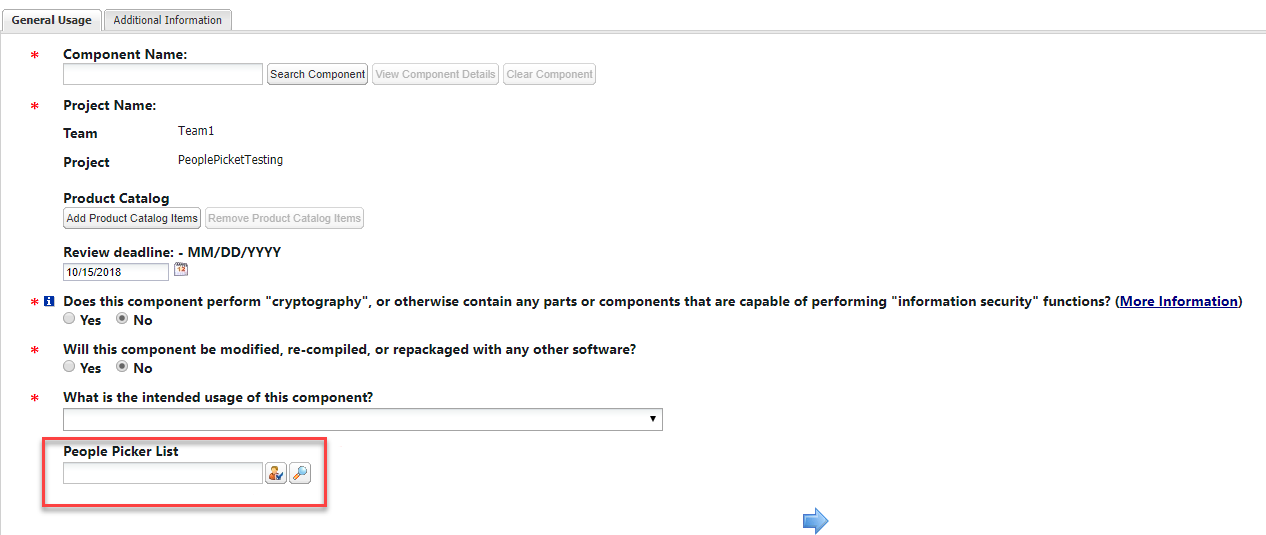
| 7. | Log in to Code Insight as a requester, navigate to the Requests dashboard, and select Add New Request to add a new request for the project. On the Usage tab of the page, you will see the new field containing the user list. |