Installing the EXE-Based FlexNet License Server Manager
This section provides step-by-step instructions for installing the EXE-based License Server Manager.
Before you begin, ensure that you have downloaded the installation ZIP file from the Product and License Center (login required). If you are a license administrator, you may have received the file directly from your software producer.
To install the EXE-based License Server Manager
| 1. | Locate the downloaded ZIP file, named FlexNetLicenseServerManagerInstaller-<version>.zip and unzip its contents to a directory of your choice. |
| 2. | Double-click the FlexnetLicenseServerManagerInstaller.exe file. The installer performs the following actions: |
| • | Installs the License Server Manager under the default directory: C:\Users\<username>\AppData\Local\Programs\revenera |
| • | Creates a desktop shortcut: |

| • | Adds the License Server Manager to the Windows Start Menu under Installed Apps. |
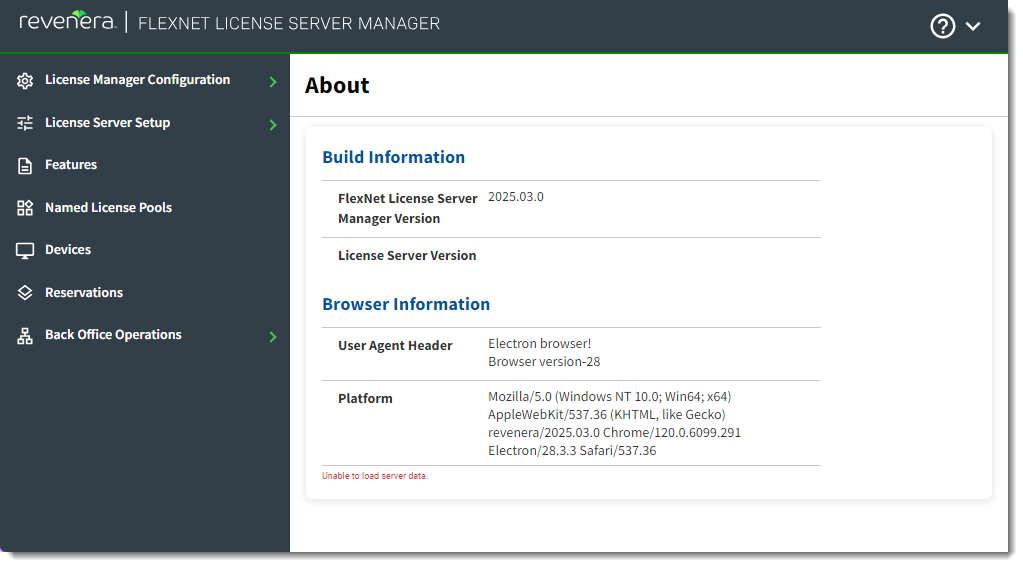
When the installation is complete, the License Server Manager launches automatically and displays the About page.
After installation, proceed to configure the License Server Manager. For details, see FlexNet License Server Manager Information and Settings.