Providing Credentials on a Secured License Server
When administrative security is enabled on your license server, anyone attempting to administer the license server will need to provide a set of authorization credentials before starting administrative operations. When you provide your credentials as a license server administrator, you will have administrative privileges on the license server. Additionally, other enterprise users can have credentials to perform limited administrative privileges. Refer to Managing Administrative Security on a Local License Server or CLS Instance in the FlexNet Embedded License Server Administration Guide for details.
To enter authorization credentials, navigate to License Server Setup > Login. Enter the user name for your account in the User Name field, enter your password in the Password field, and click Login.
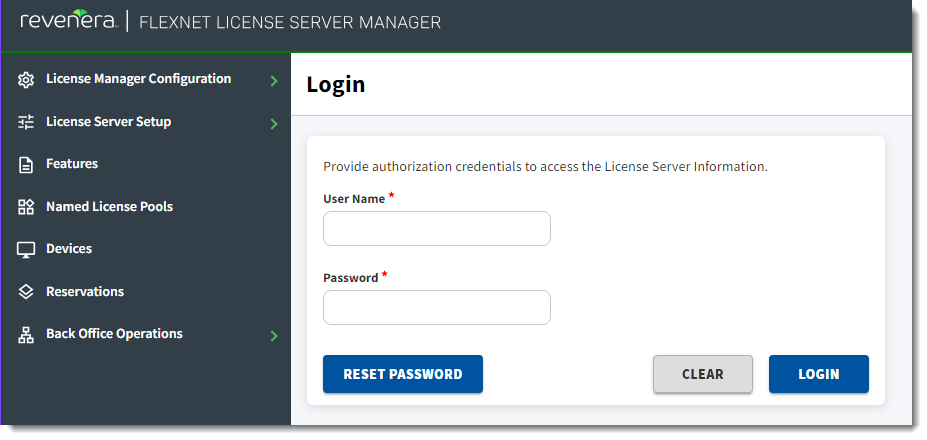
Login view to enter authorization credentials
Once the credentials have been verified, you can use the License Server Manager to perform the administrative operations for which you are authorized.
If you attempt to perform an operation in the License Server Manager that requires authorization, but you have not provided credentials or are not authorized to perform the operation, you receive an “access denied” message.
Session Timeout
License Server Manager sessions are automatically terminated after 30 minutes of inactivity.
Resetting the Administrator Password
You can update your administrator password using the Reset Password feature. This allows you to change the default password provided by your producer to a more secure or memorable one.
The Reset Password feature works differently depending on your login status:
|
•
|
First-time login or after an update:
|
|
•
|
The Reset Password page includes a Current Password field, and you must enter your current password to set a new one. |
|
•
|
You can change your password without entering your current password. |
|
•
|
The Current Password field is not displayed. |
|
•
|
After a session timeout:
|
|
•
|
Sessions expire after 30 minutes of inactivity. |
|
•
|
You must log in again before changing your password. |
To reset the administrator password
|
1.
|
Navigate to License Server Setup > Reset Password. This opens the Reset Password page. |
|
2.
|
Complete the fields on the Reset Password page: |
|
•
|
User Name—Your administrator username. |
|
•
|
Current Password—Your existing password (displayed only during first-time login or after session timeout). |
|
•
|
New Password—Your desired new password |
|
•
|
Confirm New Password—Re-enter your new password. |
|
3.
|
Click Reset Password to save the changes. |
A confirmation message appears when the password has been successfully changed.