Upgrading the Local License Server on Windows
Steps to upgrade the local license server differ slightly, depending on your chosen installer:
| • | Upgrading Using the Command-Based Installer |
| • | Upgrading Using the InstallAnywhere Installer |
Upgrading Using the Command-Based Installer
To upgrade the local license server on Windows using the command-based installer
| 1. | As a precautionary measure, create a backup. Should errors occur during the update, you can restore the previous version from the backup. |
Back up the following files:
| • | Current license server’s installation directory |
| • | Trusted storage files (the .ks, .db, and .0 files). The default storage location is C:\Windows\ServiceProfiles\NetworkService\flexnetls\producer_name. |
| • | Current license server’s configuration file (producer-settings.xml, in the bin\tools directory) |
For more information, see Show General Configuration Information for the License Server.
| 2. | Uninstall the local license server that is currently installed. |
For more information, see Uninstalling the Local License Server.
Important:Do not delete the trusted storage files. This will result in the loss of license server data and configurations.
| 3. | Install the latest version of the local license server. |
For more information, see Configuring, Installing, and Starting the Local License Server.
| 4. | Optional: If you want to continue to use the previous configuration, copy the producer-settings.xml file from the backup taken in Step 1 to the new installation directory. |
If you are changing the trusted storage file location, you will lose the license server data unless you copy the trusted storage files (from the backup taken in Step 1) to the new location.
Upgrading Using the InstallAnywhere Installer
The upgrade process depends on the version of the local license server currently installed. Starting with version 2026.11, the InstallAnywhere Installer provides an Upgrade option that upgrades an existing installation without requiring the local license server to be uninstalled first.
The InstallAnywhere Installer executable is FlexnetLicenseServerWizardInstaller.exe. If your producer provided the local license server files in flexnetls-x64_windows-<version>.zip, you can find the installer in the server folder in the ZIP file, together with producer-settings.xml.
Use the following table to determine the appropriate upgrade path for the currently installed version:
|
Currently Installed Version |
Upgrade Path |
|
2026.07 or earlier, installed using the InstallAnywhere Installer |
Upgrade to 2026.08 first. Then upgrade to 2026.11 or later. |
|
2026.08 through 2026.10 |
Use the manual upgrade procedure described in Upgrading from Version 2026.10 and Earlier. |
|
2026.11 or later |
Use the Upgrade option in the InstallAnywhere Installer, as described in Upgrading from Version 2026.11 and Later. |
Upgrading from Version 2026.10 and Earlier
Use the following procedure to upgrade a local license server installation from version 2026.10 or earlier.
Important:If version 2026.07 or earlier was installed using the InstallAnywhere Installer, you cannot upgrade directly to version 2026.11 or later. First upgrade to version 2026.08. You can then upgrade to version 2026.11 or later.
To upgrade the local license server from version 2026.10 and earlier using the InstallAnywhere installer
| 1. | As a precaution, create a backup. Should errors occur during the update, you can restore the previous version from the backup. |
Back up the following files:
| • | Current license server’s installation directory |
| • | Trusted storage files (the .ks, .db, and .0 files). The default storage location is C:\Windows\ServiceProfiles\NetworkService\flexnetls\producer_name. |
| • | Current license server’s configuration file (producer-settings.xml, in the “bin\tools” directory) |
| 2. | Uninstall the local license server that is currently installed. |
For more information, see Uninstalling the Local License Server.
Important:Do not delete the trusted storage files. This will result in the loss of license server data and configurations.
| 3. | Delete the C:\ProgramData\flexnetls directory created during the previous installation. |
| 4. | Navigate to the server directory within the previous license server installation. |
Important:Do not delete producer-settings.xml during the upgrade. The existing file is required to retain the local license server configuration. For more information, see Show General Configuration Information for the License Server.
| 5. | Delete all files in this directory except producer-settings.xml. |
| 6. | Place the new executable, FlexnetLicenseServerWizardInstaller.exe, into the server directory. |
| 7. | Run the executable with Administrator privileges. |
If you are changing the trusted storage file location, you will lose the license server data unless you copy the trusted storage files (from the backup taken in Step 1) to the new location.
Upgrading from Version 2026.11 and Later
Starting with local license server version 2026.11, the InstallAnywhere Installer provides an Upgrade option for upgrading an existing installation to a later version. The existing local license server does not need to be uninstalled before the upgrade.
To upgrade the local license server from version 2026.11 or later using the InstallAnywhere installer
| 1. | When you receive the installation ZIP file for the new local license server version from your producer, locate the installer executable, FlexnetLicenseServerWizardInstaller.exe. |
| 2. | Place the installer executable in the directory that contains the producer-settings.xml file used by the existing local license server installation. |
| 3. | As a precaution, create a backup. Should errors occur during the update, you can restore the previous version from the backup. |
Back up the following files:
| • | Current license server’s installation directory |
| • | Trusted storage files (the .ks, .db, and .0 files). The default storage location is C:\Windows\ServiceProfiles\NetworkService\flexnetls\producer_name. |
| • | Current license server’s configuration file (producer-settings.xml, in the “bin\tools” directory) |
For more information, see Show General Configuration Information for the License Server.
| 4. | Run the installer executable with Administrator privileges. |
The installer detects the existing local license server installation and displays the Upgrade option.
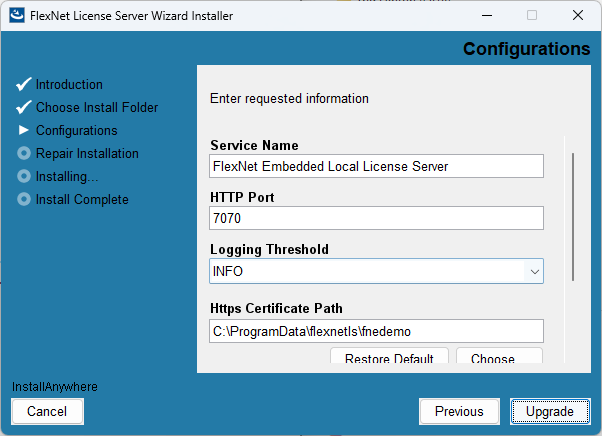
| 5. | Click Upgrade. |
The installer upgrades the existing local license server installation to the new version.
If you are changing the trusted storage file location, you will lose the license server data unless you copy the trusted storage files (from the backup taken in Step 3) to the new location.