Device Management Enhancements
The following enhancements to device management were added in the 2025 R1 release.
| • | Bulk Updating Account Information for Devices |
| • | Device History Now Listing Users Who Triggered Events |
| • | Reassigning Returned Standalone Devices |
Bulk Updating Account Information for Devices
(Case 02880444, SWM-25969)
Producers can now use the newly introduced Devices Template to assign an account to multiple devices at a time. This offers an easier and faster UI-based way to perform bulk transfers of entitlements between accounts, including stock returns and the transfer of faulty appliance entitlements.
To download the Devices Template (XLSX format), click Administer > Import Data Objects and select the Data Import Templates tab.
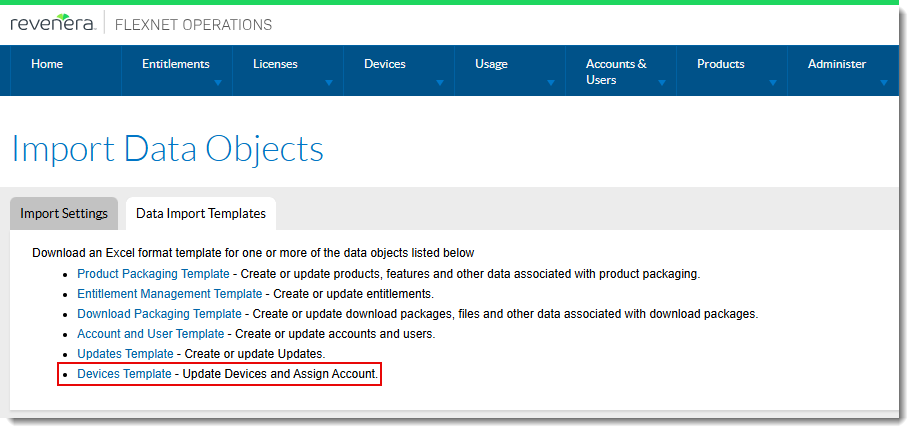
The Devices Template can be downloaded from the Import Data Objects page.
In the template, the following properties must be provided to update account information for devices: host id, publisher name, host class, host id type and account ID.
This screenshot shows an example of a populated template:
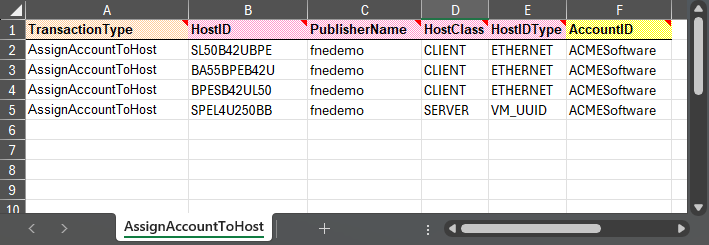
Example of a populated XLSX template.
Once the Devices Template has been populated, it must be saved as a Unicode .txt file before it can be imported into FlexNet Operations, using the Import Settings tab on the Import Data Objects page.
Device History Now Listing Users Who Triggered Events
(Cases 02685529, 02869243; SWM-13895)
The Device History page (available by clicking View > View Device History on a Device or View Server page) now includes a User Details column, which lists the name of the user who triggered an event (for example, creating a device or mapping entitlements).
This improvement enhances transparency by identifying who performed particular actions on a device, making it easier to troubleshoot issues. 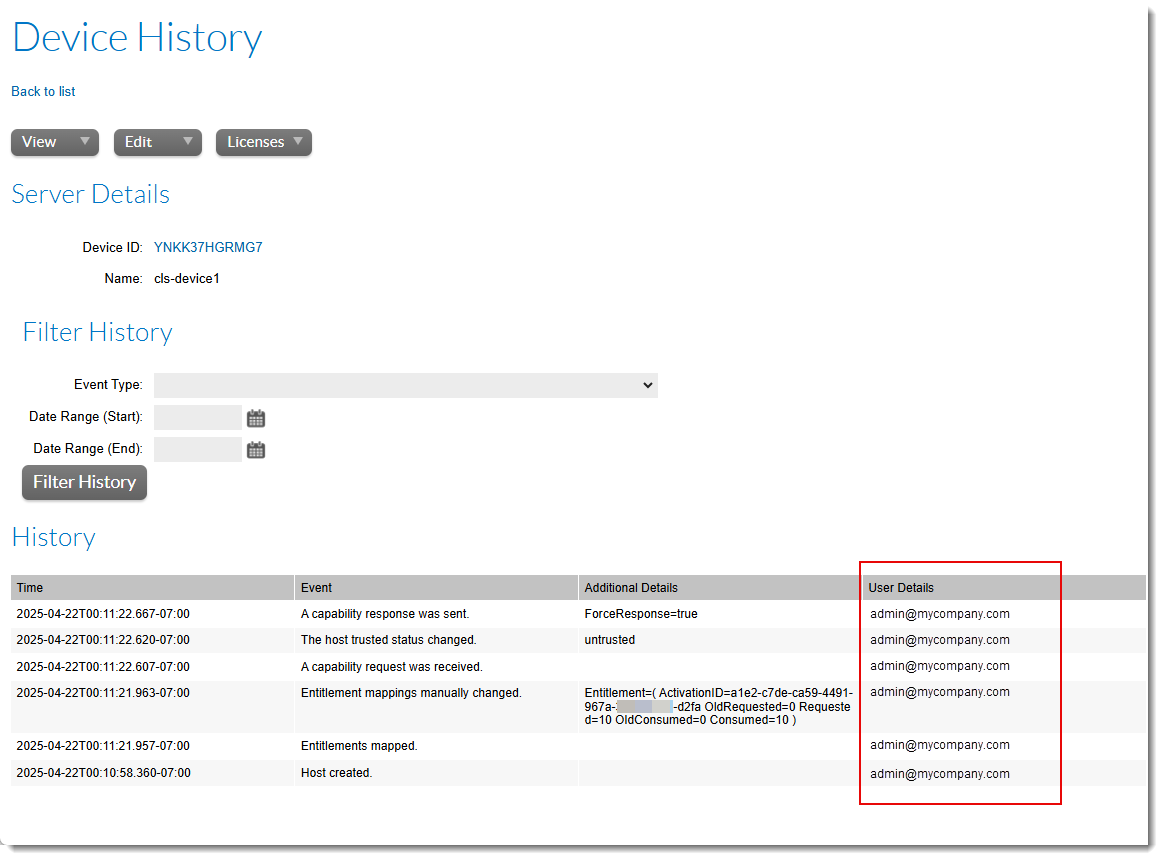
Example of the Device History page with the User Details column.
Reassigning Returned Standalone Devices
(Case 01948947, SWM-20276)
This release includes an enhancement for returned standalone devices.
Returning a device is intended for devices that no longer receive capability responses or license files, or servers that no longer serve devices or communicate with the FlexNet Operations back office. Previously, returning a device was an irreversible action. When a device was returned, it was permanently disassociated from its account.
The 2025.01 release introduces the ability to reassign returned standalone devices to an account and reactivate such devices. This enables producers to take returned standalone devices back into service.
Reassigning a Device Using the Producer Portal
Producers can reassign a returned device to an account using the menu item Reassign Account from the Edit menu on the Device page. (To access the Device page for a returned device, click Devices > Devices > click a hyperlinked device name.)
Note:Returned devices have a status of Returned and are by default not listed on the Devices page (under Devices > Devices) even when searched. To display returned devices on the Devices page, select the option Inactive in the filter above the devices list.
The following screenshot shows the new menu item Reassign Account on the Device page:
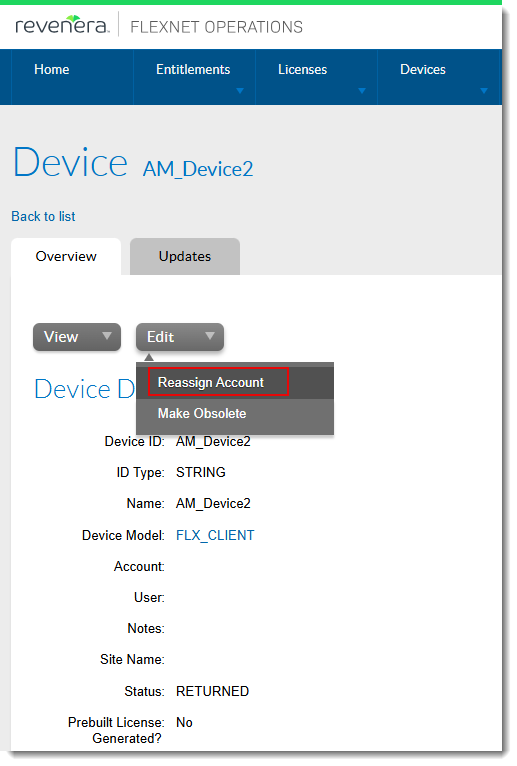
Clicking Reassign Account opens the Assign account page, where you can select a new account for the device.
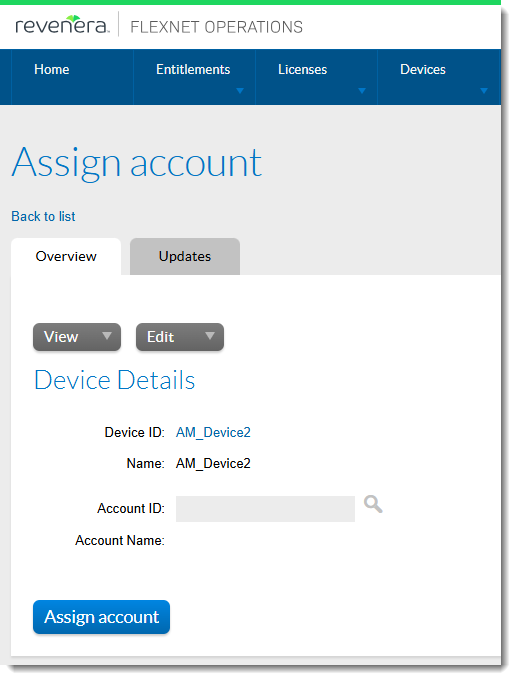
After a standalone device has been reassigned to an account, the device status is changed to Active. The device can now have entitlements mapped to it.
Reassigning a Standalone Device Using Web Services
Returned standalone devices can also be reassigned using the updateDevice operation of the ManageDeviceService web service.
The following code snippet illustrates how to use the updateDevice operation:
<urn:updateDeviceRequest>
<urn:device>
<urn:deviceIdentifier>
<urn:deviceType>CLIENT</urn:deviceType>
<!-- Note: This is the device to be updated, currently in RETURNED state -->
<urn:deviceId>Test123</urn:deviceId>
<urn:deviceIdType>STRING</urn:deviceIdType>
<urn:publisherName>fnepublisher</urn:publisherName>
</urn:deviceIdentifier>
<urn:updateChannelPartners>
<urn:channelPartners>
<urn:channelPartner>
<!-- Note: Only END CUSTOMER is supported as per existing functionality-->
<urn:tierName>bo.constants.partnertiernames.endcustomer</urn:tierName>
<!-- Note: This is the account to which the device is to be reassigned -->
<urn:accountUnit>
<urn:primaryKeys>
<urn:name>MyAccount</urn:name>
</urn:primaryKeys>
</urn:accountUnit>
</urn:channelPartner>
</urn:channelPartners>
<!-- Note: Only REPLACE is supported as per existing functionality-->
<urn:opType>REPLACE</urn:opType>
</urn:updateChannelPartners>
</urn:device>
</urn:updateDeviceRequest>
There have been no changes to any of the .wsdl or .xsd files for SOAP services.
Reassigning a Standalone Device Using the End-User Portal
To use a returned standalone device in the End-User Portal, the device must first be reassigned to an account using the Producer Portal. Once it has been assigned to an account, an end user can claim the device in the End-User Portal by clicking Devices > Claim and Activate.
Note:The Claim and Activate option only appears in the Devices menu of the End-User Portal for users with roles specifically granted the End-User Portal permissions Claim Device and Activate and Generate Licenses.