Entitlement Management Enhancements
The following enhancements to entitlement management were added in the 2025 R1 release:
| • | Marking Custom License Attributes as Inactive |
| • | New Merge Tag for Line Item Creation Date in Email Templates |
| • | Merge Tags Added to Fulfillment On Hold Email Template to Improve Communication |
| • | Grouping Product Information in Entitlements Email Template |
| • | Instance ID Merge Tag Now Available in Entitlement Email Template |
| • | “/features” Endpoint Returning Product Information |
| • | Retaining Filtered Products When Configuring Line Items |
| • | Ability to Limit Activation of FlexNet Embedded Nodelocked Licenses to Servers and/or Standalone Devices |
| • | CONTAINER_ID Host ID Now Available for Docker Containers |
| • | Advanced Search for Entitlements Includes Custom License Models |
| • | Allow Renewal License to Start Upon Expiry of Parent License |
| • | New “Features” Column on List Entitlements Page |
| • | Inactive Line Items Can Now Be Changed to Draft to Allow Editing |
| • | Warning Message When Activating Licenses for Upgrade Line Items |
| • | Confirmation Message Displayed After Merging Entitlements |
| • | Error Message When Activating Obsolete/Inactive Line Items |
| • | Visibility of Product Lines Created by Other Producer Users |
| • | Changing the Prefix for Trial Activation IDs |
| • | Overhaul of the “Show Line Items with Zero Copies by Default” Configuration Option |
Marking Custom License Attributes as Inactive
(Case 02760824, SWM-20139)
Custom license attributes—either license generator attributes or license model attributes—can now be marked as Inactive. Producers might want to make custom license attributes inactive if they should no longer be available for selection when creating an entitlement or fulfillment.
License generator attributes and license model attributes can have their status set on the Create A License Generator Attribute or Create A License Model Attribute page, respectively. Producers can set the status when creating or editing the custom license attribute.
The Custom License Attributes page (under Administer > Custom License Attributes) displays the attribute status in the new Status column. By default, the Custom License Attributes page shows only active attributes. To display all attributes, click the Show All link.
Note:Attributes that are predefined in FlexNet Operations cannot be made inactive.
New Merge Tag for Line Item Creation Date in Email Templates
(Case 02866308, SWM-21436)
A new merge tag [[LineItemCreationDate]] has been added to the Entitlement, Entitlement Certificate, and License email templates. This tag enables producers to insert the line item’s creation date into the relevant email.
Merge Tags Added to Fulfillment On Hold Email Template to Improve Communication
(SWM-25684)
When an on-hold fulfillment is created, an email can be triggered to notify the producer that the fulfillment is waiting for a license to be set. The Fulfillment On Hold template, on which such an email would be based, has now been enhanced to include additional merge tags to include relevant details. (Previously, the only merge tag available in this template was [[FulfillmentID]].)
List of Merge Tags in Fulfillment On Hold Template
The following table lists all merge tags currently available in the Fulfillment On Hold template.
|
Merge Tag |
Description |
Example Preview Value |
|
[Acctld]] |
Account ID |
ACME |
|
[[AcctName]] |
Account Name |
MYORG |
|
[ACTIVATION_DATE]] |
Activation Date |
Feb 28, 2007 |
|
[[ActivationID]] |
Activation ID |
9e8f-8b6f-0fbf-4488-950b-e4a5-1bfe-e73c |
|
[[EntitlementID]] |
Entitlement ID |
bf1a-1191-4957-46aa-4f7f-fe |
|
[[EXPIRATION_DATE]] |
Order Line - Last day that the object is effective (exclusive) |
2/1/2003 |
|
[[FulfillmentCount]] |
Fulfillment Count |
< FulfillmentCount > |
|
[[FulfillmentID]] |
Fulfillment ID |
< FulfillmentID > |
|
[[LICENSE_MODEL_ATTRIBUTES]] |
License Model Attributes |
< LICENSE_MODEL_ATTRIBUTES > |
|
[[LICENSE_MODEL_NAME]] |
License Model Name |
< LICENSE_MODEL_NAME > |
|
[[LicenseTechnology]] |
License Technology |
FlexNet Licensing |
|
[[OverdraftCount]] |
Overdraft Count |
< OverdraftCount > |
|
[[PartnerTierName]] |
Partner Tier Name |
End Customer |
|
[[PartNumber]] |
Part Number |
PartNumberOne |
|
[[PRODUCT_NAME]] |
Product Name |
Test Product |
|
[[PRODUCT_VERSION]] |
Product Version |
7.6 |
|
[[ShipToAddress]] |
Ship To Address |
< ShipToAddress > |
|
[[ShipToEmail]] |
Ship To Email |
< ShipToEmail > |
|
[[START_DATE]] |
Start Date |
< START_DATE > |
Sample Code for Fulfillment On Hold Template
This sample shows how the merge tags could be used in the Fulfillment On Hold template.
License text has not been set for the following generated fulfillment. The administrator was notified. You will receive an email when the license is ready to download. <br/>
------------------------------------------------------------------------------<br/>
Fulfillment On Hold<br/>
------------------------------------------------------------------------------<br/>
FulfillmentID = <b>[[FulfillmentID]]</b><br />
Activation ID: [[ActivationID]]<br />
Entitlement ID: [[EntitlementID]]<br />
------------------------------------------------------------------------------<br/>
Sold to AccountName: [[AcctName]]<br />
Sold to AccountID: [[AcctID]] <br/>
ChannelPartnerDetails: <br/>
[[PartnerTierName]]: <br />
------------------------------------------------------------------------------<br/>
ProductName: [[PRODUCT_NAME]] <br/>
ProductVersion: [[PRODUCT_VERSION]] <br/>
PartNumber: [[PartNumber]] <br/>
LicenseTechnology: [[LicenseTechnology]] <br/>
LicenseModel: [[LICENSE_MODEL_NAME]] <br/>
------------------------------------------------------------------------------<br/>
LicenseModelAttributes: <br/>
[[LICENSE_MODEL_ATTRIBUTES]] <br/>
------------------------------------------------------------------------------<br/>
StartDate: [[START_DATE]] <br/>
ExpirationDate: [[EXPIRATION_DATE]] <br/>
FulfillmentDate: [[ACTIVATION_DATE]] <br/>
------------------------------------------------------------------------------<br/>
OverdraftCount :[[OverdraftCount]] <br/>
FulfillmentCount : [[FulfillmentCount]] <br/>
------------------------------------------------------------------------------<br/>
Sample Email Based on the Fulfillment On Hold Template
The code above would result in an email similar to the following:
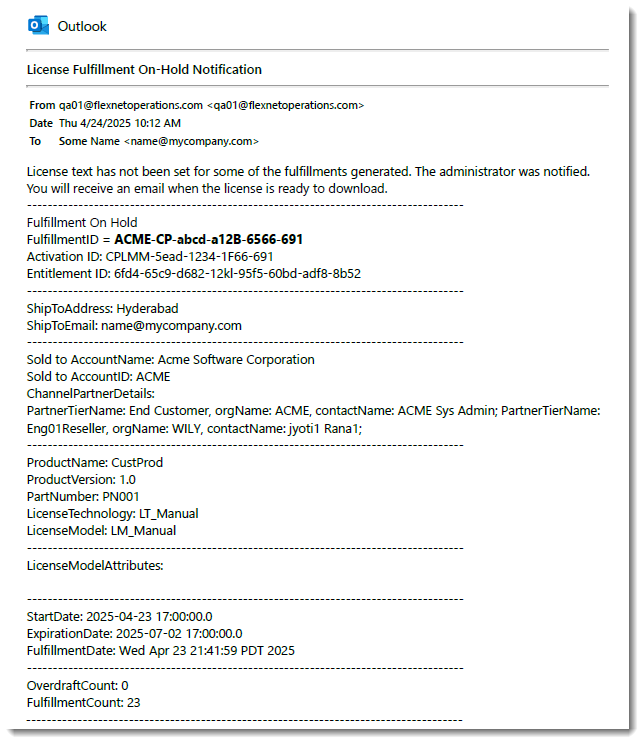
Example of an email with detailed fulfillment information, based on the Fulfillment On Hold template.
Grouping Product Information in Entitlements Email Template
(Cases 02749254, 02956269; SWM-21546)
This release introduces a new merge tag [[FOR-EACH tag="EntitledProductLine"]] for the Entitlement email template. This tag can be used to group all the products from a product line along with information about each product in the Entitlement email that customers will receive.
Use of the new merge tag is controlled by the configuration option Allow grouping of product information based on product line in entitlement email template (under System > Configure > FlexNet Operations > General Options). By default, this option is disabled.
This enhancement gives producers more flexibility when structuring their entitlement emails. Depending on whether the configuration option is selected or unselected, the Entitlement email can either:
| • | iterate the product line and print product information, or |
| • | iterate the product and print product line information. |
The following examples illustrate the different Entitlement emails that can be generated:
| • | Configuration Option Selected, Iterating Product Lines |
| • | Configuration Option Unselected, Iterating Products |
Configuration Option Selected, Iterating Product Lines
The following example code shows how to use the merge tag [[FOR-EACH tag="EntitledProductLine"]] to iterate through product lines and then iterate the products for each product line, along with sample output.
[[FOR-EACH TAG="Entitlement" child-only="true"]]
[[FOR-EACH TAG="EntitlementLineItem"]]
[[IF TAG="LicenseGenerator" VALUE="demo"]]
[[FOR-EACH tag="EntitledProductLine"]]
Product Line - [[ProductLine]]
[[FOR-EACH tag="EntitledProduct"]]
Product Name: [[Name]]
Product Description: [[Description]]
[[END FOR-EACH]]
[[END FOR-EACH]]
Part Number: [[PartNumber]]
Permanent: [[Permanent]]
Start Date: [[StartDate]]
Expiry Date: [[ExpirationDate]]
ActivationID: [[ActivationID]]
[[END IF]]
[[END FOR-EACH]]
[[END FOR-EACH]]
A resulting Entitlement email might look like this:
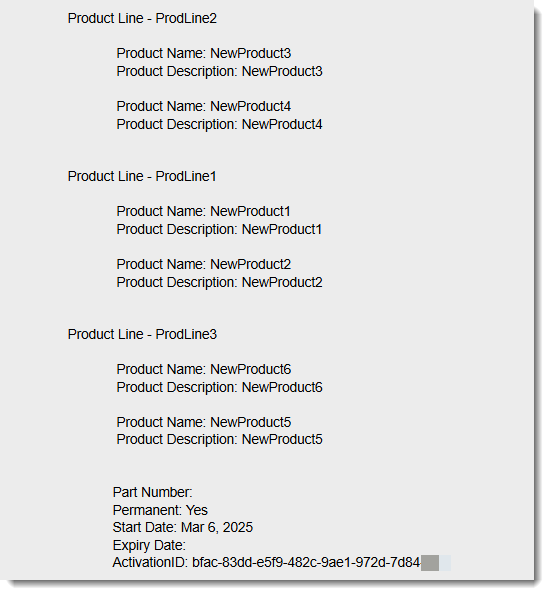
Entitlement email using the [[FOR-EACH tag="EntitledProductLine"]] merge tag
Configuration Option Unselected, Iterating Products
When the configuration option Allow grouping of product information based on product line in entitlement email template is unselected, the merge tag [[FOR-EACH tag="EntitledProduct"]] iterates through products and includes product line information. Below is some sample code and an example of a resulting Entitlement email.
[[FOR-EACH TAG="Entitlement" child-only="true"]]
[[FOR-EACH TAG="EntitlementLineItem"]]
[[IF TAG="LicenseGenerator" VALUE="demo"]]
[[FOR-EACH tag="EntitledProduct"]]
Product Name: [[Name]]
Product Description: [[Description]]
Product Line: [[ProductLine]]
[[END FOR-EACH]]
Part Number: [[PartNumber]]
Permanent: [[Permanent]]
Start Date: [[StartDate]]
Expiry Date: [[ExpirationDate]]
ActivationID: [[ActivationID]]
[[END IF]]
[[END FOR-EACH]]
[[END FOR-EACH]]
A resulting Entitlement email might look like this:
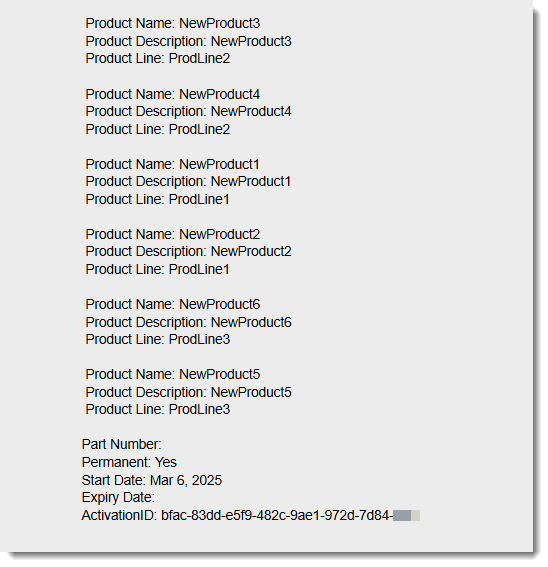
Entitlement email using the [[FOR-EACH tag="EntitledProduct"]] merge tag.
Instance ID Merge Tag Now Available in Entitlement Email Template
(Case 02875263, SWM-21918)
Previously, the merge tag [[DEFAULT_GLS_INSTANCE_ID]] (available in the Entitlement email template) could only be included above the email text, but not in the email within LicenseModel or EntitlementLineItem tags.
In the 2025.01 release, the merge tag [[DEFAULT_GLS_INSTANCE_ID]] can be nested inside the LicenseModel or EntitlementLineItem tag, and producers can now insert the Cloud Licensing Service (CLS) instance ID into the table in an Entitlement email. (This allows an Entitlement email, for example, to contain a table with rows for each line item, and to specify the CLS ID in the rows related to the CLS.)
The following sample shows how the merge tag [[DEFAULT_GLS_INSTANCE_ID]] is nested inside the EntitlementLineItem tag:
[[FOR-EACH TAG="EntitlementLineItem"]]
[[DEFAULT_GLS_INSTANCE_ID]]
[[END FOR-EACH]]
“/features” Endpoint Returning Product Information
(SWM-19716)
Previously, any licensing information that is passed between FlexNet Operations and a FlexNet Embedded license server was feature centric. This could make it difficult for producers and their customers to see which products are currently licensed, and which licenses are available on the license server.
To address this challenge, the 2025 R1 release includes an enhancement where a number of endpoints for FlexNet Embedded license servers (local license servers and Cloud License Server instances) now return additional product-related information.
Returned Product Information
The following product information can be returned:
| • | Product Name |
| • | Product Version |
| • | Activation ID |
| • | Entitlement ID |
List of Endpoints
The following endpoints can return product information:
| • | /api/1.0/instances/{instanceid}/features |
| • | /api/1.0/instances/{instanceid}/features/{id} |
| • | /api/1.0/instances/{instanceid}/features/{id}/clients |
| • | /api/1.0/instances/{instanceid}/features.stream |
| • | /api/1.0/instances/{instanceid}/clients/ |
| • | /api/1.0/instances/{instanceid}/features/summaries |
| • | /api/1.0/instances/{instanceid}/partitions (under feature slices) |
| • | /api/1.0/instances/{instanceid}/partitions/{id} (under feature slices) |
| • | /api/1.0/instances/{instanceid}/clients/{id}/features |
| • | /api/1.0/instances/{instanceid}/clients/id |
Query Parameter to Return Product Information
To return product information in the /features endpoint, pass the query parameter includeEntitlementInfo=true.
Example:https://hostName/GlobalLicensingService/api/1.0/instances/DeviceId/
features?includeEntitlementInfo=true
Retaining Filtered Products When Configuring Line Items
(Case 02166366, SWM-4796)
When creating or updating entitlements, while configuring line items, users can now select products across multiple searches. Products selected from each search will be retained and all products selected from each search can be linked to the line item that is being configured.
This new functionality is available as part of the standard search; it is not available for the advanced search.
Ability to Limit Activation of FlexNet Embedded Nodelocked Licenses to Servers and/or Standalone Devices
(Cases 02793847, 02992811; SWM-19823, SWM-24434)
Producers can now specify whether a nodelocked FlexNet Embedded license can only be activated on license servers, standalone devices, or both. This enhancement increases a producer’s control over license activation, and prevents license leakage caused by uncounted licenses being activated on a license server.
Controlling the activation of FlexNet Embedded licenses is done during license model creation (Administer > License Models > Create new license model). When selecting the license model type Embedded, producers can select where the license model can be activated using the new option, Hosted On. The following options are available:
| • | License Servers—Licenses can only be activated on license servers. Attempts to activate a license on a standalone device will fail. |
| • | Standalone Devices—Licenses can only be activated on standalone devices. Attempts to activate a license on a license server will fail. |
| • | Both—Licenses can be activated on license servers and on standalone devices. This is the default option. |
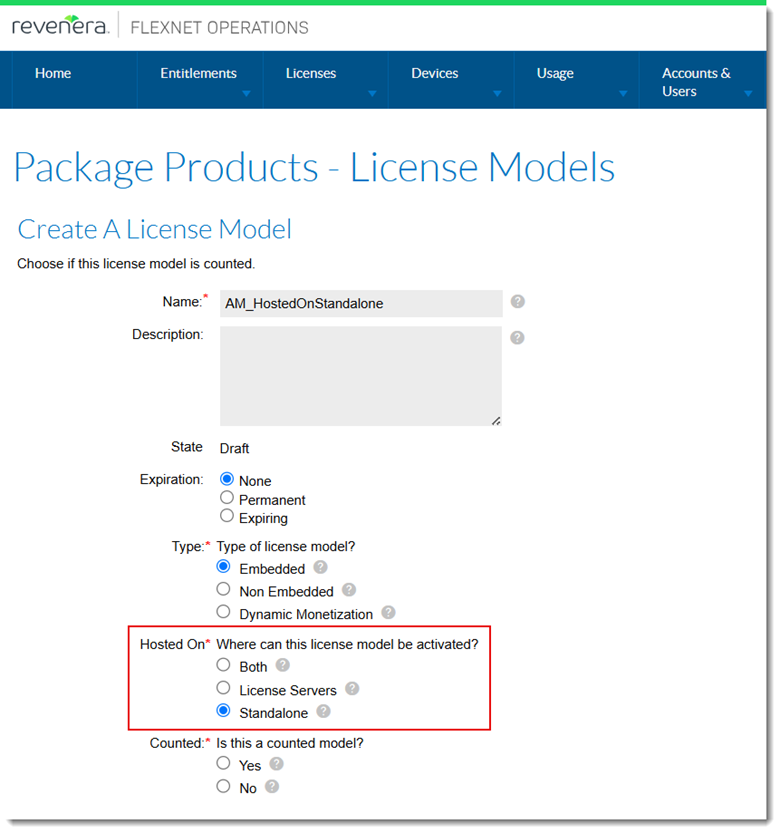
The Hosted On property is set during license model creation.
The above controls apply to online and offline activations and are enforced regardless of activation type (Producer Portal, Web services, capability requests).
Behavior when changing a license model for a product
To explain the behavior, consider that you have the following license models defined:
| • | License model 1: HostedOnServerOnly, Hosted On property set to License Servers |
| • | License model 2: HostedOnStandalone, Hosted On property set to Standalone |
When the license model of an existing product is changed—for example, the license model is changed from HostedOnServerOnly to HostedOnStandalone—FlexNet Operations will correctly validate license applicability based on device type.
While the entitlement line items are not removed automatically, once the license model is changed, licenses with HostedOnStandalone are no longer shown for Cloud License Server (CLS) instances or local license servers. Users must manually remove entitlements if they are no longer valid for the device.
This behavior ensures that licenses meant only for standalone devices won't mistakenly appear for license servers, reducing confusion and helping enforce correct usage.
CONTAINER_ID Host ID Now Available for Docker Containers
(Case 02758504, SWM-19930)
The list of hostid types available for Flexnet Publisher certificate-based licensing now also includes the host ID type CONTAINER_ID. The CONTAINER_ID is used to node-locking a license server and feature licenses to a docker container host ID.
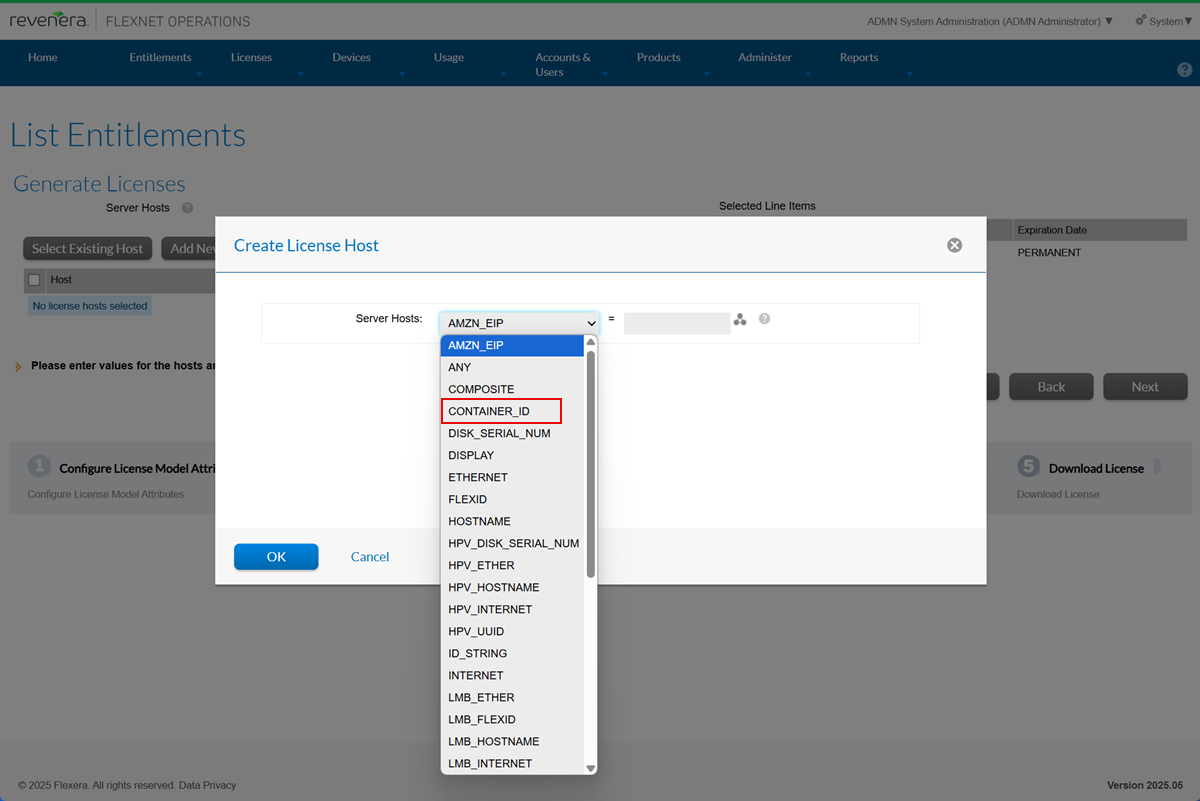
The CONTAINER_ID can be selected in the Create License Host window.
Producers wanting to use CONTAINER_ID as a host ID must build a new version of the Vendor Certificate Generator (VCG) executable and need to change the generator configuration to version 16.2.3.0. Instructions on how to build a new version can be found in the Flexnet Operations User Guide, topic Creating a FlexNet Publisher Licensing Toolkit License Generator (VCG) Configuration.
Advanced Search for Entitlements Includes Custom License Models
(Case 02987224, SWM-25152)
On the List Entitlements page, the Advanced Search now allows users to filter entitlements by custom license models. This enhancement is available in both the Producer Portal and the End-User Portal.
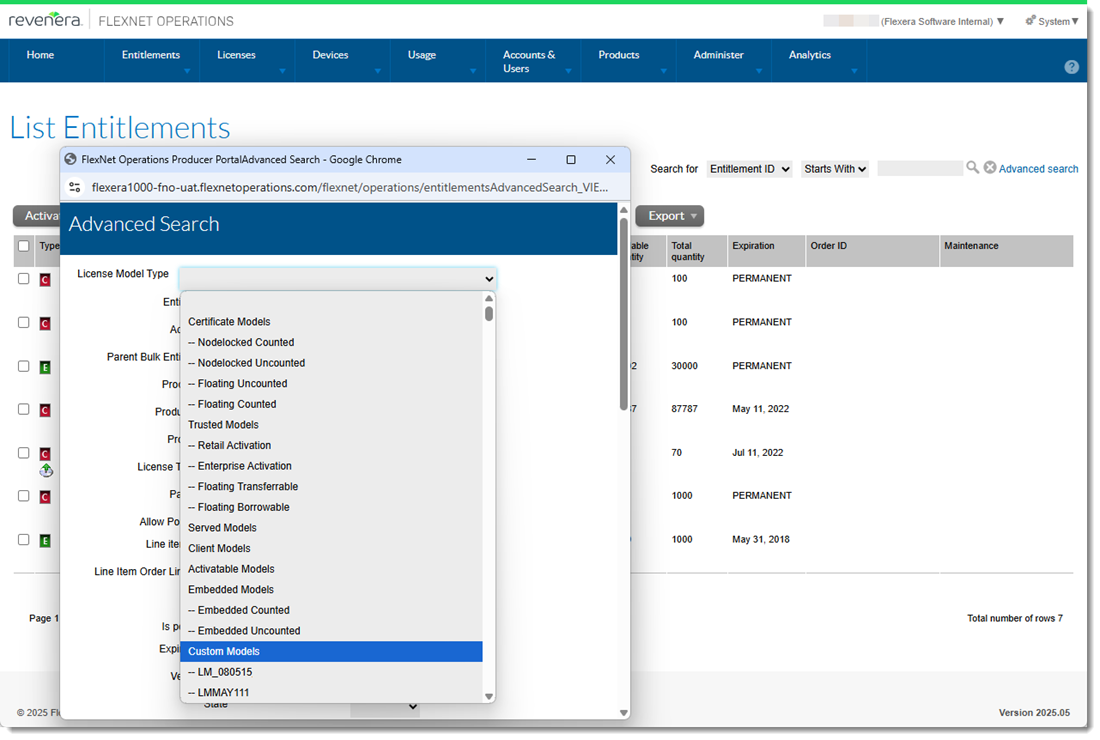
The Advanced Search window now includes custom license models when searching for entitlements.
Allow Renewal License to Start Upon Expiry of Parent License
(Case 02679546; SWM-21239)
Currently, mapping a renewal license to a device can result in the parent license being unmapped, temporarily leaving the device without a license.
This issue occurs when a renewal relation is set up between the parent and the child line items, and the renewed (child) line item has a future start date. When the renewed line is activated, it replaces the parent line mapped to the device. It is possible to create a renewal line item without linking to the parent line item; in this case there is no gap in license coverage.
To address this issue, the 2025.04 release introduces a configuration which allows producers to change the behavior when mapping renewal licenses to devices. The new configuration called Retain mapping of the parent activation to the devices when mapping a child activation is available under System > Configure > Embedded Devices > Host Options. By default, the option is unselected, maintaining the behavior of previous releases.
When this option is selected, the parent license remains mapped to the device even when a child license (for a renewal, upgrade or upsell) is applied. This means that the parent license continues to be available after the child line item has been mapped.
This enhancement allows producers to issue renewal licenses well before the parent license expires, and it enables customers to apply the renewal license early. This ensures uninterrupted license coverage throughout the device's activation lifecycle, preventing any interruptions.
There has been no change to the user experience. Activations are mapped as before:
| • | Producer Portal—On the View Device or View Server page (under Devices > Devices, click a hyperlinked device name), click Licenses > Map Entitlements or Map by Activation IDs. |
| • | SOAP web services—Using the the incrementAddonLineItems and linkAddonLineItems operations of the ManageDeviceService web service. |
Note:Producers are responsible for explicitly unmapping unused/expired activations.
New “Features” Column on List Entitlements Page
(Case 02982636, SWM-25094)
In the Producer Portal and the End-User Portal, the List Entitlements page can display an additional Features column, which would show the name and the version of the feature that is associated with a product. If a product includes more than one feature, a more... link is displayed. Pointing to the link lists all features that are linked to the product.
This enhancement makes it easier for producers and their customers who might be more familiar with feature names than product names to identify and manage the features associated with a product.
Displaying the Features Column
This enhancement is disabled by default. Producers who would like the Features column to be displayed should send a request to Revenera support. Revenera strongly recommends that producers ensure that displaying the Features column does not interfere with the way they currently use the List Entitlements page.
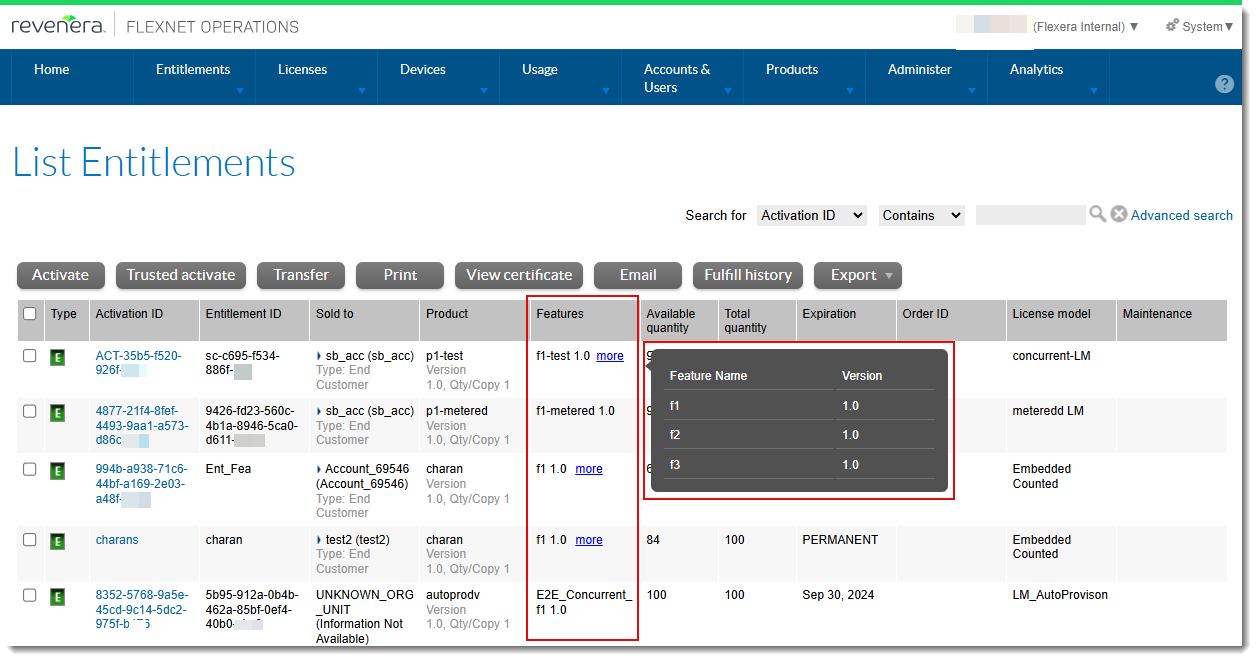
The List Entitlements page with the Features column displaying feature information in the Producer Portal
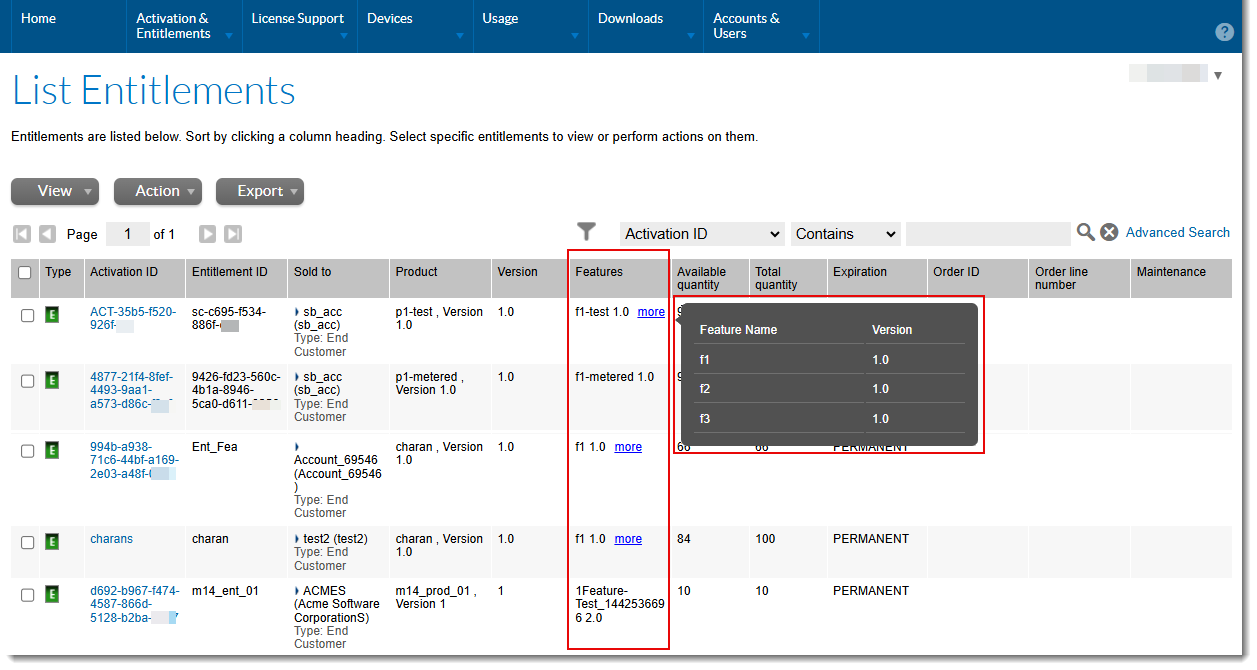
The List Entitlements page with the Features column displaying feature information in the End-User Portal
Inactive Line Items Can Now Be Changed to Draft to Allow Editing
(Case 02552542, SWM-25355)
The 2025.03 release now allows producers to change the state of line items from Inactive to Draft. Previously, to edit an inactive line item, its status had to be changed to Deployed. This enhancement means that producers can edit or re-use previously inactive line items, without the need to deploy these line items first.
Example: A producer wants to update the part number for a certain product. The products are already associated with entitlements, some of which are inactive. The producer can now change a line item’s status from Inactive to Draft, which then makes the line item editable. The producer can update the part number and then change the status back to Inactive.
The following screenshots show the Line Items section, where a line item has its status changed to Inactive, and the Customers to Licenses page with the subsequent success message.
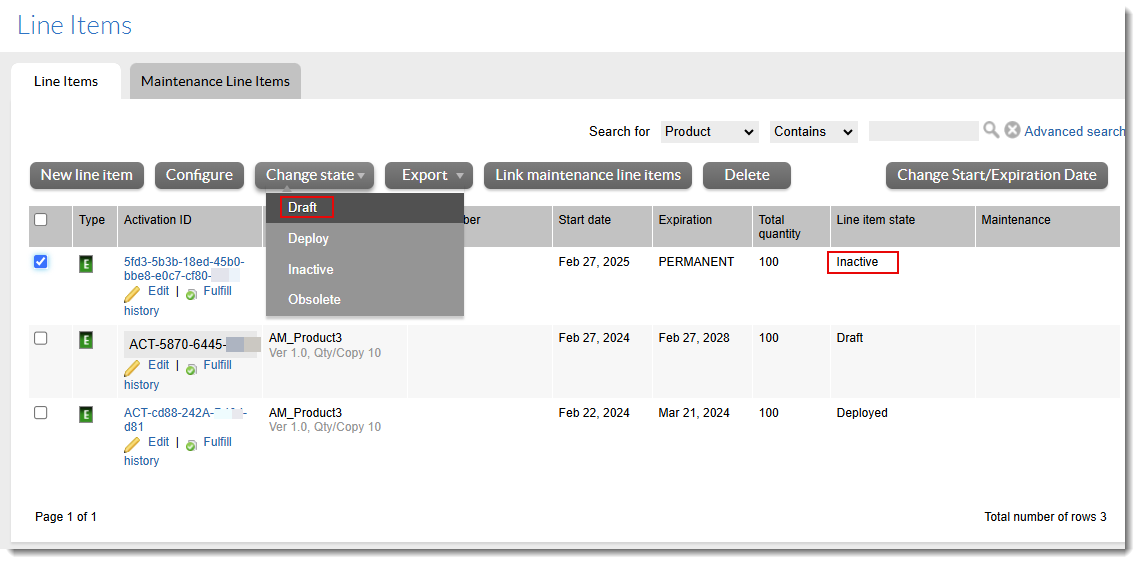
Changing the line item status from Inactive to Draft in the Line Items section of the Entitle Customers to Licenses page
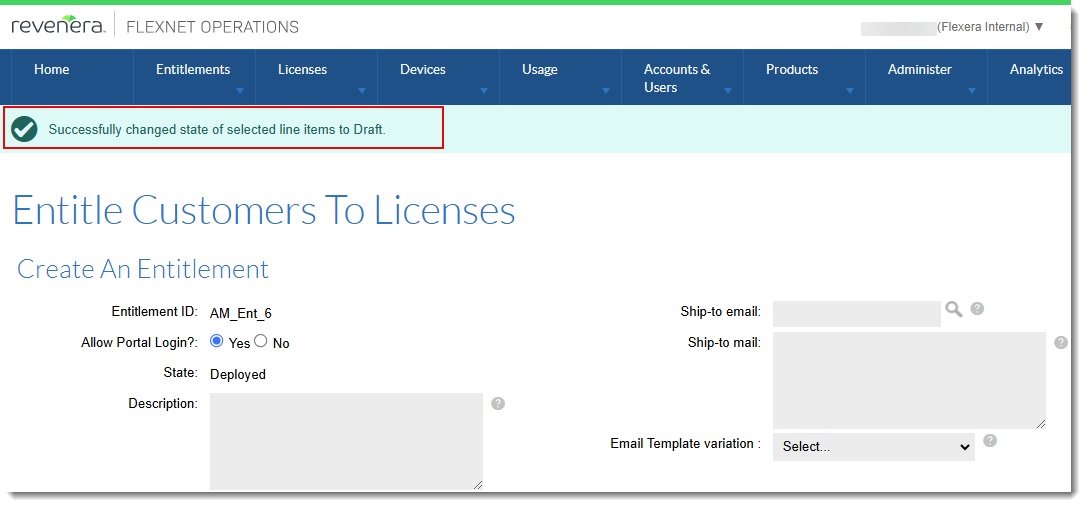
The Entitle Customers to Licenses page shows a confirmation message after changing the line item’s status.
Warning Message When Activating Licenses for Upgrade Line Items
(Case 02733304, SWM-19396)
In FlexNet Operations, when a base line item is associated with an upgrade line item, and the upgrade line item is activated, the quantity is consumed on the parent line. Returning the upgrade line item will not free up the count on the base line item. This is to prevent license leakage.
However, customers who are not aware of this behavior might be frustrated. Imagine the following scenario: a customer upgrades to a new product version and activates the upgraded version. For some reason, the upgraded version of the product does not live up to their expections. When the customer tries to return the upgraded line item, in the hope of being able to use the previous product, they find that this is no longer possible. They now have no choice but continue using the upgrade that they do not like.
To help users make conscious decisions when upgrading, FlexNet Operations now includes a new configuration option Display warning message when activating upgrade line item linked to parent line item (under System > Configure > FlexNet Operations > General Options). The option controls the behavior of the Producer Portal and the End-User Portal:
| • | When the configuration option is selected, and a user tries to activate an upgrade line item that is linked to the parent line item (by navigating to the List Entitlements page, selecting an entitlement and clicking Activate), the following warning is displayed: |
“If you activate the selected upgrade line item, you will no longer be able to activate previous versions of that line item. Are you sure you want to activate the upgrade line item?“
This message makes it clear to the user that they cannot revert back to the previous version after the upgrade.
| • | When the configuration option is unselected, and a user tries to activate an upgrade line item that is linked to the parent line item, no warning message is be displayed. The Generate Licenses page opens for activating the license. (It is the Current Behaviour). |
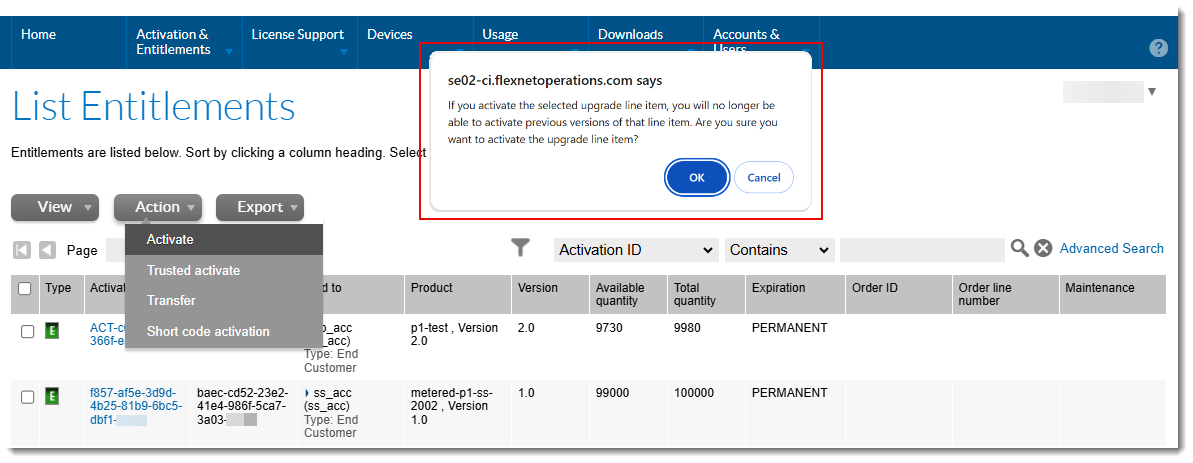
Example of the warning message in the End-User Portal
Confirmation Message Displayed After Merging Entitlements
(Case 02974495, SWM-24762)
Previously, when a user initiated a merge operation by selecting the assets to be merged and clicking Complete on the List Entitlements By Order | Merge Entitlements page, the Producer Portal redirected the user to the List Entitlements By Order page which then listed the merged assets. This behavior was confusing, because the user had no immediate way of knowing whether the merge was successful.
To improve the user experience, the List Entitlements By Order | Merge Entitlements page now displays a confirmation message which indicates whether the merge was successful. In the event of an error, a meaningful error message is displayed.
The following screenshot shows the List Entitlements By Order | Merge Entitlements page with a confirmation message for a successful merge operation:
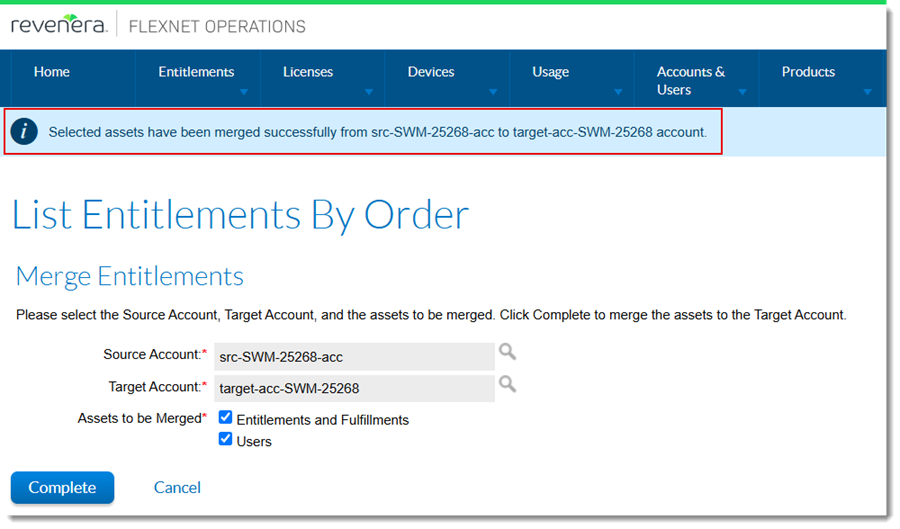
The confirmation message after a merge on the List Entitlements By Order | Merge Entitlements page
After the merge, users can navigate away from the page using the options in the top navigation bar.
This enhancement applies to operations for merging entitlements and fulfillments and for merging users.
Error Message When Activating Obsolete/Inactive Line Items
(Case 02954549, SWM-23892)
Previously, attempting to activate an obsolete or inactive line item on a device using a FlexNet Embedded toolkit failed as expected, but no error message was displayed. This lack of error messages while activating obsolete or inactive line items made it difficult for producers to notice and resolve errors in a timely manner.
From the 2025.02 release onwards, attempting to activate an obsolete or inactive line item will result in an error being displayed. For example, the response might include a status like this:
Status=("Activation ID not permitted": 5f4d-123e-a456-7894-b123-66f4-88h7-56f3)
This screenshot shows a sample response:
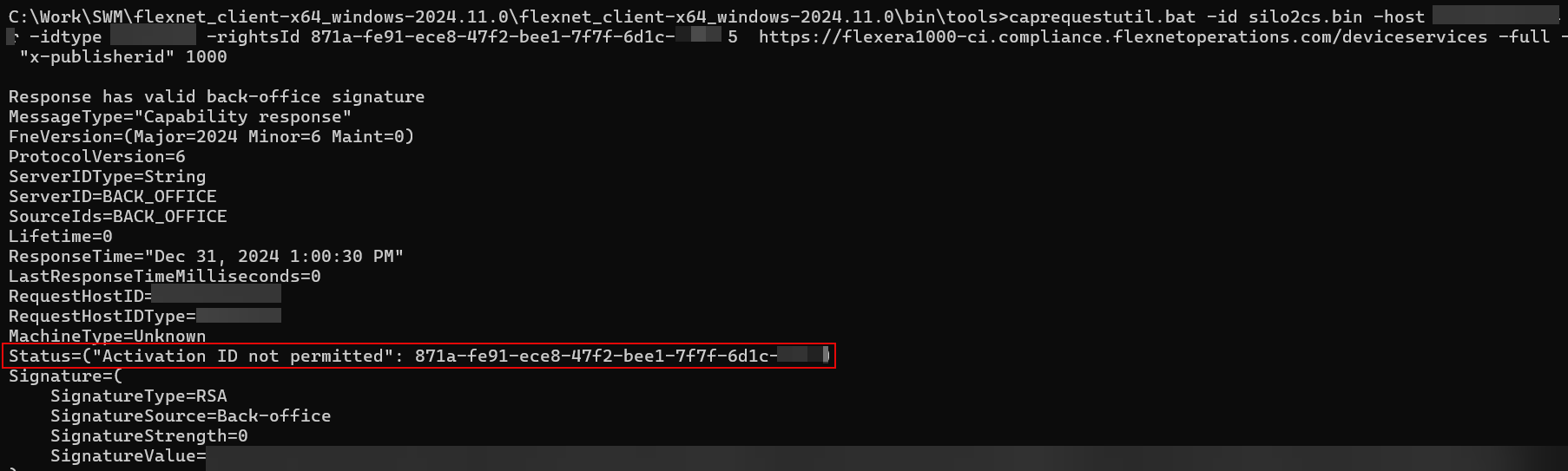
This enhancement enables producers to identify the cause of the error and take corrective action, if required.
Visibility of Product Lines Created by Other Producer Users
(Cases 02774078, 02848224; SWM-20402)
In previous FlexNet Operations releases, a producer user could only access the product lines they created. However, this could create issues when system administrators left and new staff had to take over their responsibility for product lines. Product lines that were created by the previous administrator were not visible to the new administrators, making product line management very difficult.
The 2025.03 therefore introduces a new configuration option Enable visibility of all product lines for system administrators (under System > Configure > FlexNet Operations > General Options). If enabled, the Product Lines section on the Create a User and Create an Account pages in the Producer Portal displays all product lines, including those created by other producer users. The Link product lines button in that section, which was previously limited to product lines created by the logged-in user, now allows linking of product lines created by other producer users.
By default, the Enable visibility of all product lines for system administrators option is disabled.
Note that the configuration option Enable Product Lines for Products, Users, and Accounts (also under System > Configure > FlexNet Operations > General Options) must be selected for the new configuration option Enable visibility of all product lines for system administrators to be effective.
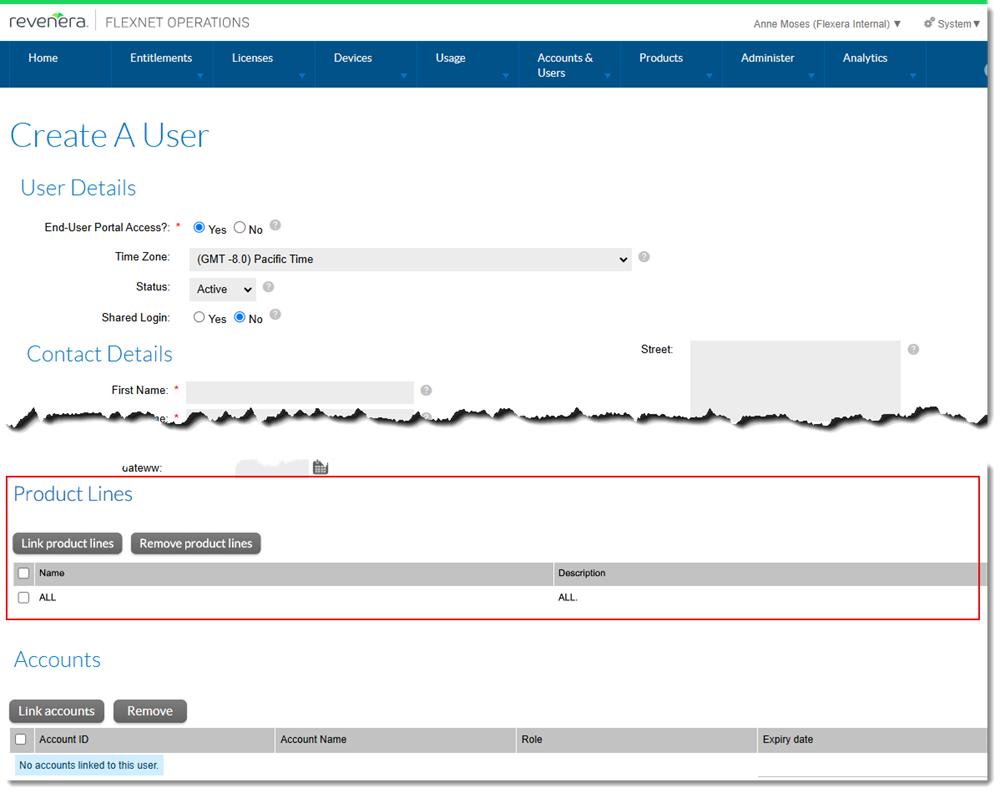
When Enable Product Lines for Products, Users, and Accounts is selected, the Product Lines section on the Create a User page (pictured) and the Create an Account page displays all product lines, including those created by other producer users.
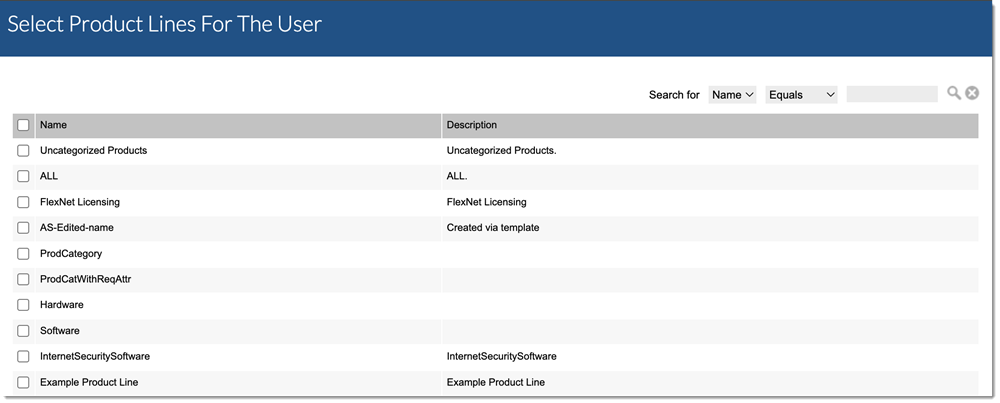
Clicking Link product lines in the Product Lines section on the Create a User page and the Create an Account page displays the Select Product Lines for the User window, where producer users can link or remove a product line, including those product lines created by other producer users.
Changing the Prefix for Trial Activation IDs
(Case 02461881, SWM-21200)
The 2025.03 release allows producers to customize the short string that is used as a prefix for trial activation IDs.
Previously, customization was not allowed. When a trial entitlement was created, its activation ID had the fixed prefix “Act”, which was a limitation when the entitlement needed to match or validate old or existing licenses and made trial conversions or renewals difficult. A configurable prefix gives producers the flexibility to match the activation IDs in these various phases.
Producers wanting to change the prefix can do so in the configuration option Custom pre-fix string from Trial License Activation ID (under System > Configure > FlexNet Operations > General Options).
Overhaul of the “Show Line Items with Zero Copies by Default” Configuration Option
(Case 02876825, SWM-24336)
In previous releases, the configuration option Show Line Items with Zero Copies by Default (under System > Configure > FlexNet Operations > General Options) did not work as expected. It has now undergone an overhaul to fix functional issues and broaden its scope:
| • | In previous releases, even if the configuration option was disabled, the List Entitlements in the End-User Portal page erroneously displayed line items with zero copies remaining. This has now been resolved. |
| • | The previous description of the configuration was misleading, because it referred to the page names “Activatable Items” and “Entitlements” that do not exist in the End-User Portal. The wording has now been corrected to refer to the “List Entitlements” page. |
| • | The scope of the configuration option has been broadened. Whereas previously it controlled only which entitlements would be displayed on the List Entitlements page in the End-User Portal, it now also controls which entitlements are displayed on the List Entitlements page of the Producer Portal. To reflect this, the description has been changed as follows: “Select to show line items with zero copies by default in the List Entitlements page in the Producer Portal and End-User Portal.” |
This enhancement gives producers and their end-users greater control over the content displayed on the List Entitlements pages.
How the option affects which line items are displayed in 2025.02
When Show Line Items with Zero Copies by Default is selected, the Producer Portal and the End-User Portal show line items with zero copies remaining on their List Entitlements pages. The List Entitlements page is available in the Producer Portal under Entitlements > List Entitlements and in the End-User Portal under Activation & Entitlements > List Entitlements.
When Show Line Items with Zero Copies by Default is unselected (the default), line items with zero copies are hidden on the List Entitlements pages.