Export and Import Issues Resolved
The following issues related to the Data Export and Import functionality were resolved in the 2025 R1 release.
| • | End-Users No Longer Denied Access After Importing Entitlements When “Allow Portal Login” Column Deleted |
| • | Resolved Issue with Import and Export of Bulk Entitlements |
| • | Resolved Issue with Data Import Template |
| • | Import/Export Jobs Terminated Upon Job Server Restart |
| • | Import/Export Jobs No Longer Getting Stuck on Job Server Restart |
| • | Retriggering Stuck Jobs for Bulk Upgrade Operations |
| • | Account Data Export |
End-Users No Longer Denied Access After Importing Entitlements When “Allow Portal Login” Column Deleted
(SWM-20500)
When the AllowPortalLogin column on the Create-Update Entitlement sheet in the Entitlement Management template has been deleted, the end customer is now allowed to log into the End-User Portal using the entitlement ID or activation ID. Previously, access was erroneously denied.
Resolved Issue with Import and Export of Bulk Entitlements
(SWM-21129)
Importing and exporting data using the Create-Update Entitlement and Create-Update BulkEntitlement sheets in the Entitlement Management template no longer fails if the data includes custom license model attributes of type Multi-valued text which contain no values.
Resolved Issue with Data Import Template
(Case 02775871, SWM-21434)
When exporting a set of entities as a Data Import Template file, the Data Import Template for Selected Items now pulls the correct value as given in the line item detail for the License Model Custom Attribute set during entitlement time. For example, if the License Model Custom Attribute name is Return_Allowed, which is set to false upon updating or creating a line item during entitlement time, the same value is reflected in the Data Import Template file upon downloading.
Import/Export Jobs Terminated Upon Job Server Restart
(Cases 02820494, 02818923, 02823312, 02823629, 02842880; SWM-19548)
In this release, any import/export jobs and bulk operation jobs that hang when the job server is restarted are terminated, and the following error message is displayed: Job Server was restarted. Please submit the job again.
This fix removes the lock on the scheduler to prevent follow-up jobs from getting stuck and enables customers to identify and resubmit jobs that failed due to a restart.
Import/Export Jobs No Longer Getting Stuck on Job Server Restart
(Cases 02874418, 02902735, 02909549; SWM-21535)
In previous releases, when an import/export job was running and at the same time the job server was restarted, the job was stuck in the "in Process" state and never completed until it was resubmitted.
This behavior was problematic, because producers had to resubmit those stuck import/export jobs, which took up extra time.
This has now been resolved. If an import/export job is in process while a job server restart occurs, that job will be moved to a waiting state so that the next run can pick it up. Producers no longer need to manually resubmit the hanging job.
Retriggering Stuck Jobs for Bulk Upgrade Operations
(Case 02969947, SWM-24096)
In the past, jobs for bulk upgrade operations could get stuck with the status “Submitted” or “In Progress”. There was no indication of whether the job was running. Restarting the job server had no impact on the job; it would remain stuck. The only solution for producers was to manually retrigger the job.
This issue has now been resolved. If a job for a bulk upgrade operation gets stuck, restarting the job server triggers a new job which will pick up the work from the original job. This new job is scheduled to run within 2 minutes of the server restart.
(Cases 03030706, 03032924; SWM-26609)
In this release, the functionality for exporting accounts information has been restored.
In its Export menu, the Manage Accounts page (available from Accounts & Users > All Accounts) now shows the correct option, Data Import Template. Clicking Export > Data Import Template triggers an export job, which creates a downloadable Data Import Template (.xlt) file containing the relevant entities.
The image below shows the option Data Import Template which is used to export accounts information: 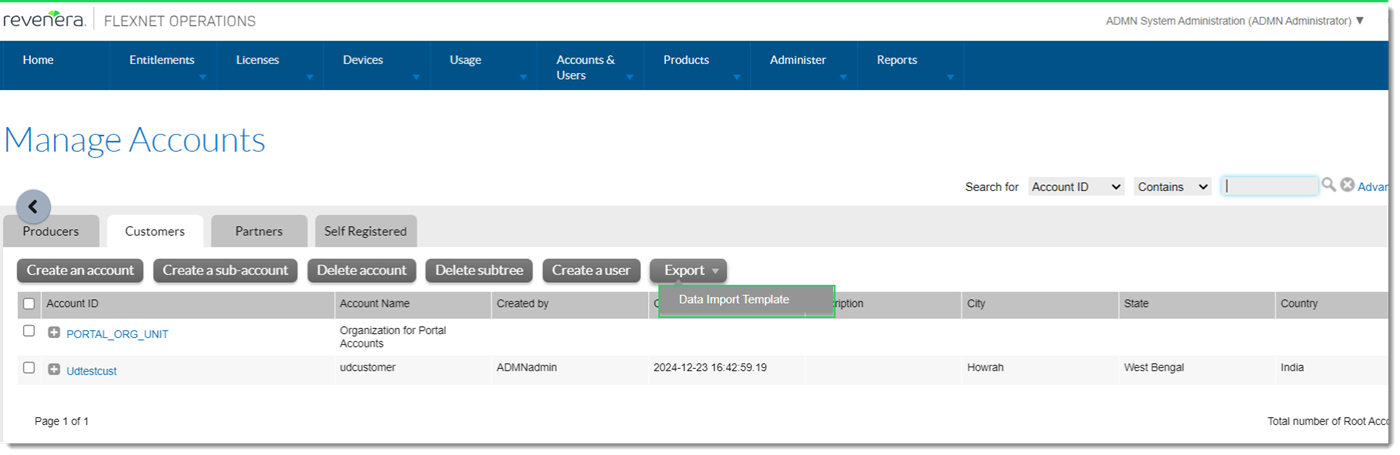
The Export menu now contains the correct option, Data Import Template, for exporting accounts information.
Previously, in its Export menu, the Manage Accounts page showed the options Selected Items and Selected Items with Their Dependencies, which had no underlying functionality (.JAR export is not available for accounts and users).