User Experience Enhancements
The following user experience enhancements were added in the 2025 R1 release.
| • | Improved Transaction Visibility in Producer Portal |
| • | Transaction History Includes Details of Device Creation and Modification Events |
| • | Selecting Individual Line Items in Entitlement Notification Email |
| • | Removed Security Question |
| • | New Configuration Hides Menu Options for Making Entities Obsolete |
| • | Larger Announcements Section on Home Page |
| • | Meaningful Labels For Search in “List Entitlements” Page in End-User Portal |
| • | Displaying All Active Custom Line Item Attributes |
| • | Enhanced Expiration Information on View Server and View Device Pages |
| • | Sorting Features on the Products Page in the Producer Portal |
| • | Fewer Clicks Required to Change Line Items’ Start or Expiration Dates |
| • | Entitlement ID and Start Date Now Displayed on Key Pages |
| • | Easier Login to Revenera Registry |
Improved Transaction Visibility in Producer Portal
(SWM-24573, SWM-24811, SWM-24812, SWM-24813, SWM-24817, SWM-24818)
Producers can now view all transactions performed on a device—whether initiated via web services or in the Producer Portal or End-User Portal—on the Search Transactions page in the Producer Portal (under System > Transaction History).
There are three exceptions to the webservice-based transactions reported:
| • | Returning a device when it is no longer in use |
| • | Any changes initiated using generateCapabilityResponse |
| • | Any requests to generate a clone detection report |
Previously, only transactions performed through the Producer Portal or the End-User Portal interface were tracked in the Transaction History.
This enhancement provides a comprehensive audit trail, enabling better tracking of past actions for compliance and troubleshooting purposes.
For more details, see the following sections:
| • | Tracked Operations |
| • | Use Case Example |
| • | Viewing Transaction Details |
Transactions are tracked for standalone devices, Cloud License Server instances and local license servers. The following table lists the operations of the ManageDeviceService web service that are now racked:
|
Transaction |
Web Service Operation |
Event Type |
Description |
|
Deleting a line item from a device |
deleteAddOnLineItemsRequest |
UPDATE |
Tracks transactions where an entitlement line item was deleted on a device. |
|
Obsoleting the host for a device |
obsoleteHostRequest |
DELETE |
Tracks transactions where a host for a device was deleted. |
|
Removing add-on line items |
decrementAddonLineItemsRequest |
UPDATE |
Tracks transactions where an add-on line item was removed from a device. |
|
Moving a device to a different account |
moveDeviceRequest |
UPDATE |
Tracks transactions where a device is moved to a different account. |
|
Deleting a device |
deleteDeviceRequest |
DELETE |
Tracks transactions where a device is deleted. |
|
Creating a device |
createDeviceRequest |
CREATE |
Tracks all successful and failed attempts to create a device. |
|
Linking entitlement line items to a device |
linkAddonLineItems |
UPDATE |
Tracks transactions where an entitlement line item was linked to a device, or where a metered license was removed from a device. |
|
Incrementing entitlement line items to devices |
IncrementAddonLineItems |
UPDATE |
Tracks transactions where an entitlement line item was incremented on a device. |
|
Updating a device |
updateDevice |
UPDATE |
Tracks transactions where a device was updated. |
Your company provides industrial software licenses via FlexNet Operations. A customer complains that their software has stopped working. Your support team checks the Transaction History in the Producer Portal and sees that your customer’s own IT administrator mistakenly deactivated the license. Instead of escalating the issue, you can immediately guide them to reactivate their license, saving time and frustration.
To view transaction details for a device, click System > Transaction History. On the Search Transaction History page, select the entity type Device, and enter any other search criteria. The Search Transactions: Results page displays a list of transactions. Click the View details link to see the details of a particular transaction. The details will look similar to this:
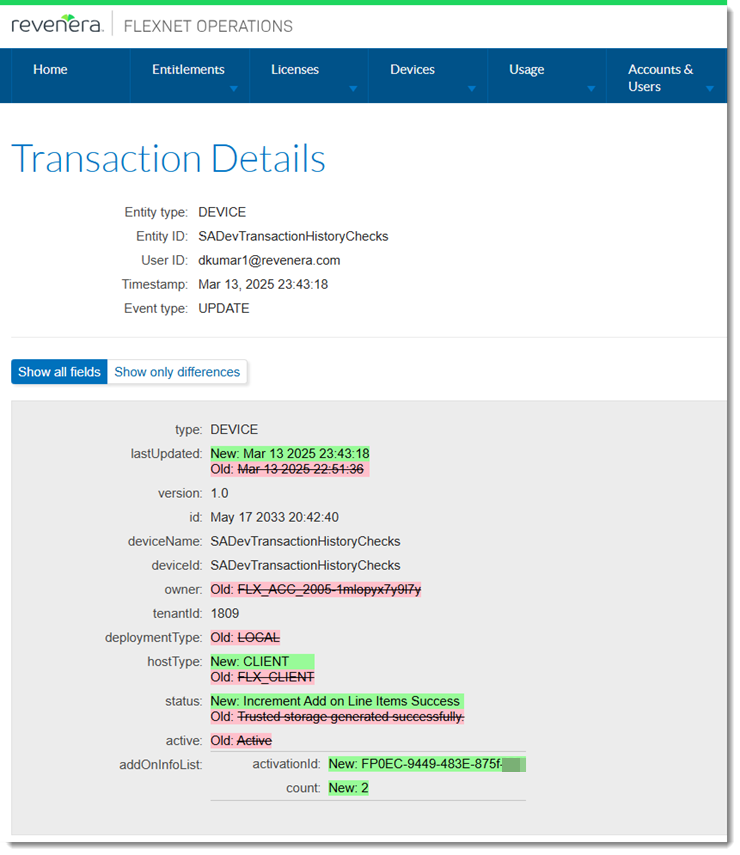
The Transaction Details page showing updates made to a device
Transaction History Includes Details of Device Creation and Modification Events
(SWM-23109, SWM-21003, SWM-23110)
FlexNet Operations users can now view the details for device creation and modification activity in the transaction history. Device modification activity includes, for example, changing a device name, user, site name or description. Tracking modification activity for devices provides valuable insights for ensuring accountability, identifying unauthorized changes, and maintaining a clear audit trail for security and compliance purposes.
Users can access the transaction history in the following ways:
| • | Click System > Transaction History. For Entity type, select Device and specify any other search parameters as required. Clicking Search opens the Search Transactions: Results page which shows the events for the Device entity. |
| • | Click Accounts & Users > All Users. Click a hyperlinked user name. On the Create a User page, click View Transaction. FlexNet Operations displays the Search Transactions: Results page which shows all events for the selected user. The table can be sorted as required, to focus on particular event types or entity types. |
On the Search Transactions: Results page, the creation of a new device is logged as CREATE in the Event type column, whereas edits to a device are logged as an UPDATE event. Clicking the View details link for an event shows the following metadata (non-exhaustive list):
| • | Device ID/name |
| • | Producer’s user ID and username |
| • | Timestamp of creation or modification |
| • | Any attributes |
| • | Activity related to removing a device |
| • | Activity related to returning a license for a device |
| • | Activity related to making a device obsolete. |
For edits to devices, the transaction details show the old as well as the new field values.
Note:The transaction history for devices only lists modifications to devices made through the Producer Portal. It does not list modifications made using web services.
Selecting Individual Line Items in Entitlement Notification Email
(Case 02971350, SWM-24682)
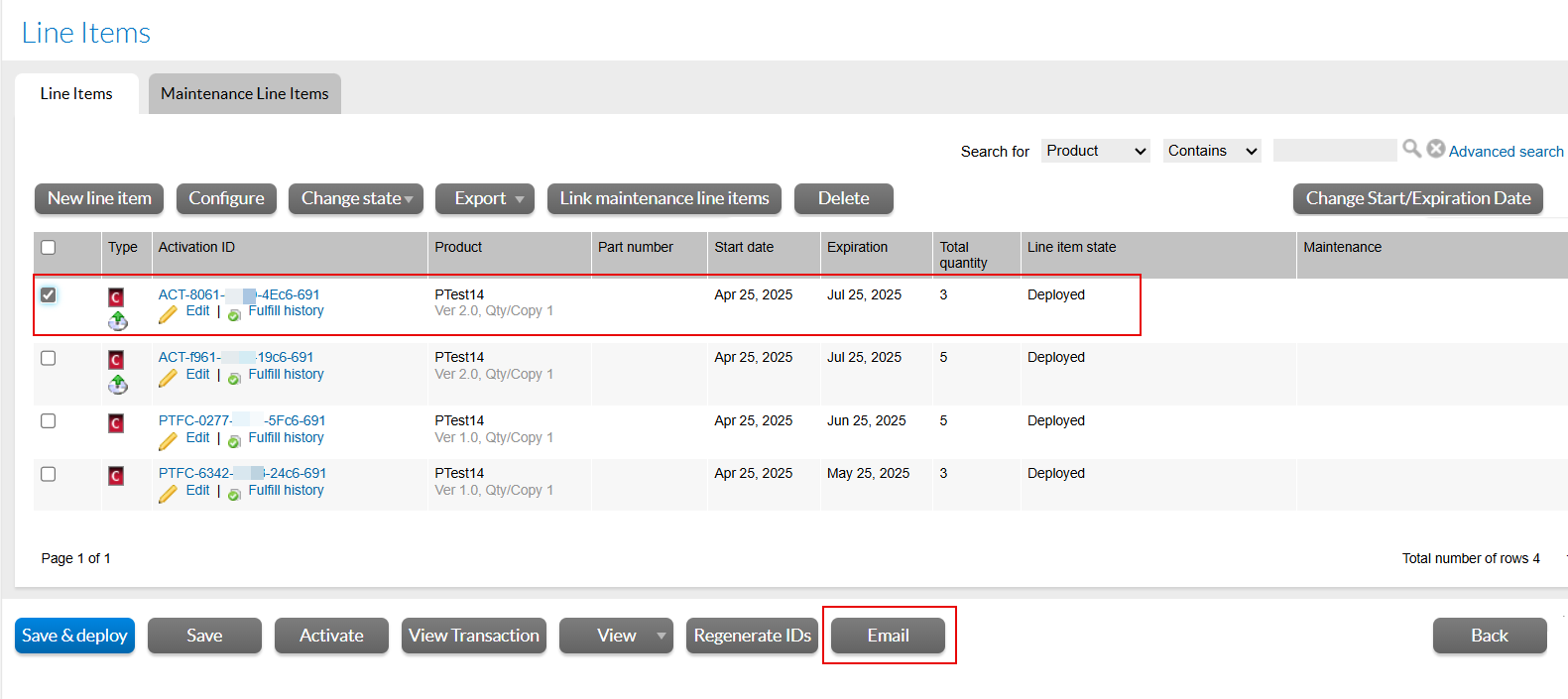
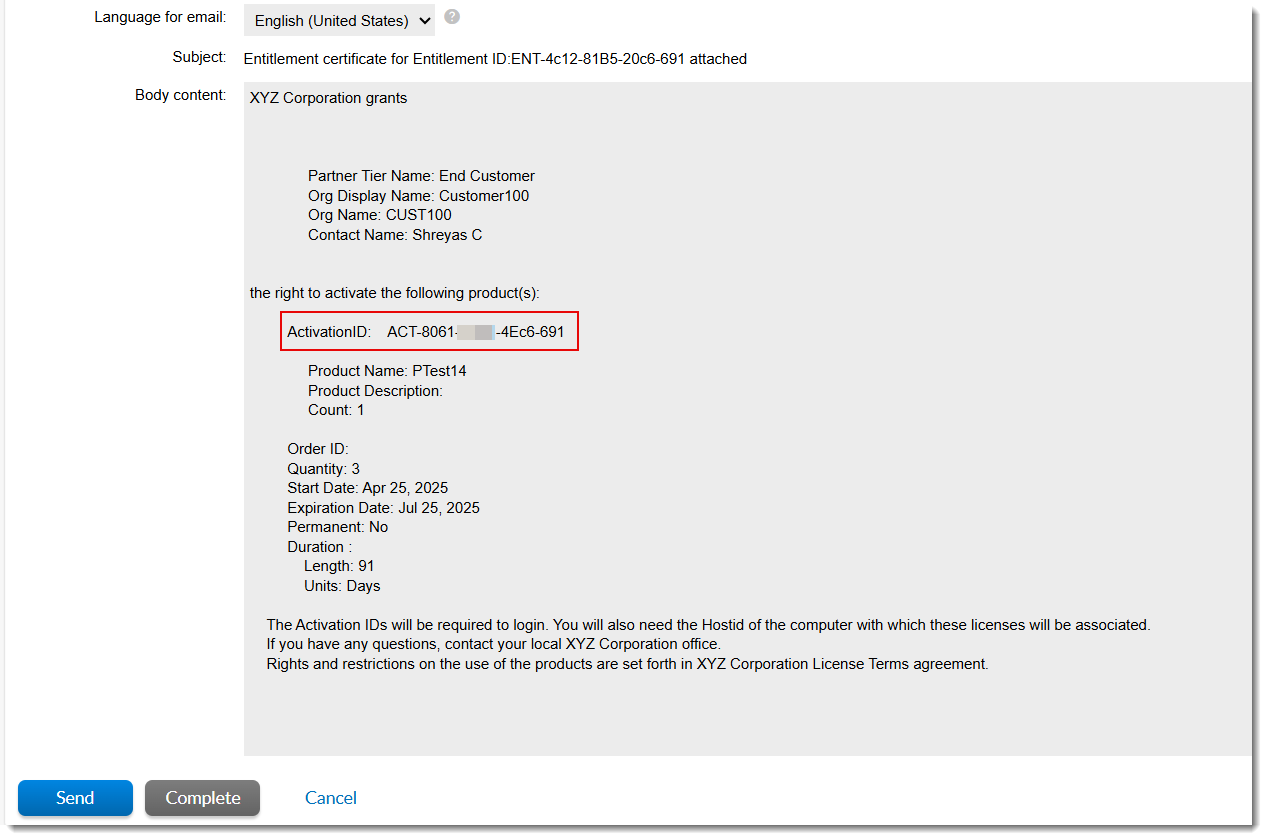
On the List Entitlement By Orders page, producers can now select individual line items to be included in the entitlement notification email, instead of including all line items in the email. This is useful in scenarios where only some of an entitlement’s line items have been added or updated.
To include only certain line items from an entitlement, a producer needs to select the desired line items on the List Entitlement By Orders page and click the Email button, as shown in this screenshot:
 The next screen will show the entitlement notification email, which only contains the selected line item. The notification email might look like this:
Previously, if an entitlement contained more than one line item, the entitlement notification email would always include all of the entitlement’s line items.
(Case 02954443, SWM-24008)
When users set or change their password for the Producer Portal or the End-User Portal, they need to select a security question as an additional authentication factor. In previous releases, the list of security questions included the question “Where were you when you first heard about 9/11?”. In the 2025.03 release, inclusion of this question has changed because it could be distressing for some users:
| • | New users and users who did not use 9/11 as a security question will no longer see the question “Where were you when you first heard about 9/11?” when they are setting their password and security question. |
| • | Existing users who had already selected “Where were you when you first heard about 9/11?” as their security question are not forced to select a different security question. Instead, they will see a warning message, “This security question is deprecated and is recommended to be changed.” This approach gives existing users time to select a new security question. Once they selected a different security question, the message is no longer displayed. |
The following screenshot shows the screen presented to existing users:
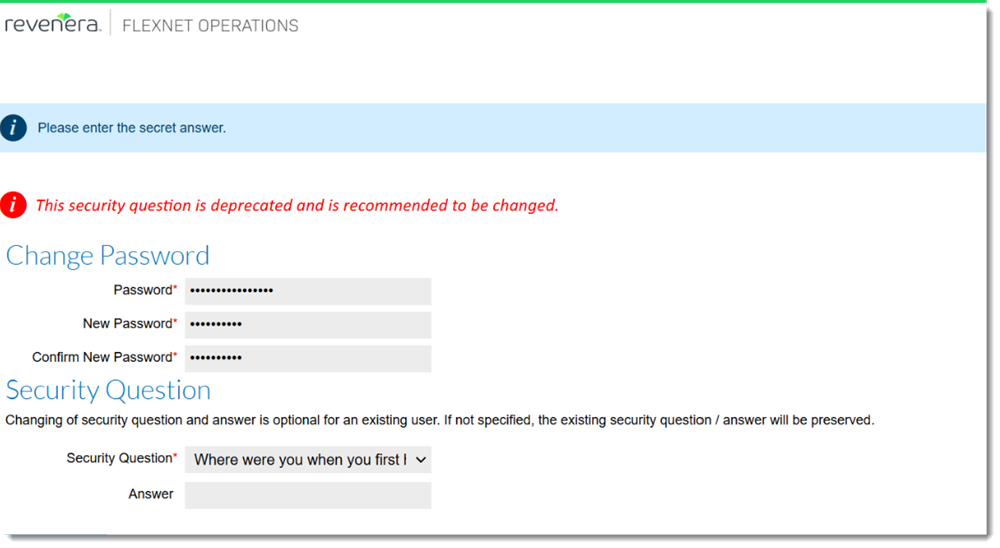
Existing users are informed that the 9/11 security question is deprecated.
These changes apply to the Producer Portal and End-User Portal.
New Configuration Hides Menu Options for Making Entities Obsolete
(Case 02902521, SWM-22852)
In FlexNet Operations, the status "Obsolete" is typically used to remove entities (for example, products, features, feature bundles, devices, suites, and license models) from use permanently. This status helps distinguish outdated or superseded entities from those currently in use, without completely deleting them from the system.
However, producers need to use great care when setting an entity’s status to Obsolete, because the status Obsolete is permanent and cannot be reverted. The 2025.01 release therefore introduces the configuration option Allow state change of entities to obsolete (under System > Configure > FlexNet Operations > General Options), which enables producers to hide the Obsolete or Make Obsolete menu options in the Producer Portal. Specifically, when the option is unselected, the Obsolete or Make Obsolete menu options are no longer displayed in the following locations in the Producer Portal:
| • | Entitlements > List Entitlements By Order > Change State menu |
| • | Entitlements > Create > Line Items and Maintenance Line Items tabs > Change State menu |
| • | Devices > Devices > clicking the hyperlinked device name opens the Device or View Server page > Edit menu |
| • | Products > Products > Change State menu |
| • | Products > Features > Change State menu |
| • | Products > Feature Bundles > Change State menu |
| • | Products > Suites > Change State menu |
| • | Administer > License Models > Change State menu |
Unselecting Allow state change of entities to obsolete prevents users from—accidentally or intentionally—changing the state of products, features, feature bundles, devices, suites, license models, and similar entities, to Obsolete using the user interface. However, entities can still have their status changed to Obsolete using an API web service call.
By default, Allow state change of entities to obsolete is selected.
Note:Operations that involve changing an entity’s state to Obsolete as part of a transfer or upgrade process are not impacted.
Larger Announcements Section on Home Page
(Case 02893461, SWM-22764)
On the Producer Portal home page, the Announcements section has been enlarged and can now display more information without the need to scroll. Scrolling is only required for very long announcements.
Meaningful Labels For Search in “List Entitlements” Page in End-User Portal
(Case 02782395, SWM-21306)
In the End-User Portal, on the List Entitlements page, two of the labels in the Search drop-down menu have been changed to more meaningful names, which now also match the equivalent labels used in the Producer Portal:
|
Old Label |
New Label |
|
Sold-to display name |
Sold-to Account Name |
|
Sold-to ID |
Sold-to Account ID |
Note:The change only applies to the English locale. Label changes for other languages will be implemented in a future release.
Displaying All Active Custom Line Item Attributes
(Case 02870375, SWM-21901)
The Producer Portal and End-User Portal now display all active custom line item attributes that have a value defined on the Line Item Details and Entitlement Details pop-up windows.
Enhanced Expiration Information on View Server and View Device Pages
(Case 02860395, SWM-20463)
In the Producer Portal and End-User Portal, the View Server and View Device pages have been enhanced to provide a better overview of the mapped line items’ expiration status.
The table in the Licenses section contains a new column, Expiration Status, which shows whether a line item is active or has expired. By default, the table is sorted to list all active line items first, followed by the expired line items. Within these groups, active and expired line items are sorted by expiration date in ascending order. The line item closest to its expiration date is displayed at the top.
Producers can change the sort order by clicking the column headers, Expiration Status and Expiration Date.
Sorting Features on the Products Page in the Producer Portal
(Case 02858726; SWM-20353, SWM-22618)
On the Package Products page in the Producer Portal, the product’s features are sorted by creation date. By default, the oldest feature is displayed at the top of the list.
Fewer Clicks Required to Change Line Items’ Start or Expiration Dates
(Cases 02802470, 02875676; SWM-20060)
A new button Change Start/Expiration Date has been added to the Entitle Customers To Licenses page. It enables producers to change the start and/or expiration date for multiple line items in an entitlement in one step.
In addition, also on the Entitle Customers To Licenses page, the table under Line Items now includes a Start date column, giving producers visibility over all start dates for all activation IDs.
Entitlement ID and Start Date Now Displayed on Key Pages
(Case 02869264; SWM-20273, SWM-20592)
In the Producer Portal, a number of pages have been updated to optionally display additional information, which enables producers to see relevant information at one glance without having to navigate to other pages.
This enhancement affects the following pages of the Producer Portal::
| • | Device Details |
| • | Map Entitlements |
| • | Remove Licenses |
| • | Map by Activation IDs |
These pages can now display the following information:
| • | The column Entitlement ID displays the hyperlinked entitlement IDs. Clicking a link opens the Entitle Customers To Licenses page with the entitlement details in a new browser tab. |
| • | The column Start Date shows the start date of the line-item. |
The following system configurations (under System > Configure > FlexNet Operations > Embedded Device Settings) control the display of a line item’s start date or its entitlement ID on the pages listed above:
| • | Display start date—Displays or hides the Start Date column on the Device Details, Map Entitlements, Map by Activation IDs, and Remove Licenses pages while viewing a license server (local license server or Cloud Licensing Service instance) or standalone device. Default: disabled. |
| • | Display entitlement ID—Displays or hides the Entitlement ID column on the Device Details, Map Entitlements, Map by Activation IDs, and Remove Licenses pages while viewing a license server (local license server or Cloud Licensing Service instance) or standalone device. Default: disabled. |
Note:You access the Device Details and Map Entitlement pages as follows:
| • | Device Details page: click Devices > Devices > select a device. The new columns are displayed in the Licenses section. |
| • | Map Entitlements page: click Devices > Devices > select a device. On the Device page, click Licenses > Map Entitlements. The new columns are displayed in the Entitlements Available section. |
| • | Map by Activation IDs page: click Devices > Devices > select a device. On the Device page, click Licenses > Map by Activation IDs. The new columns are displayed in the Entitlements Available section. |
| • | Remove Licenses page: click Devices > Devices > select a device. On the Device page, click Licenses > Remove Licenses. The new columns are displayed in the Licenses Currently Mapped section. |
Easier Login to Revenera Registry
(SWM-20249)
An end customer wanting to pull a container image must first log into the registry. However, this presumes that the customer already knows the registry URL, which is not always the case.
To make this process easier for customers, on the Downloads page, the End-User Portal now contains a new button, Container Registry login, which will copy the Docker login command with the appropriate tenant URL to the clipboard. Customers can then easily paste the command into the Docker command-line interface to log into the registry.
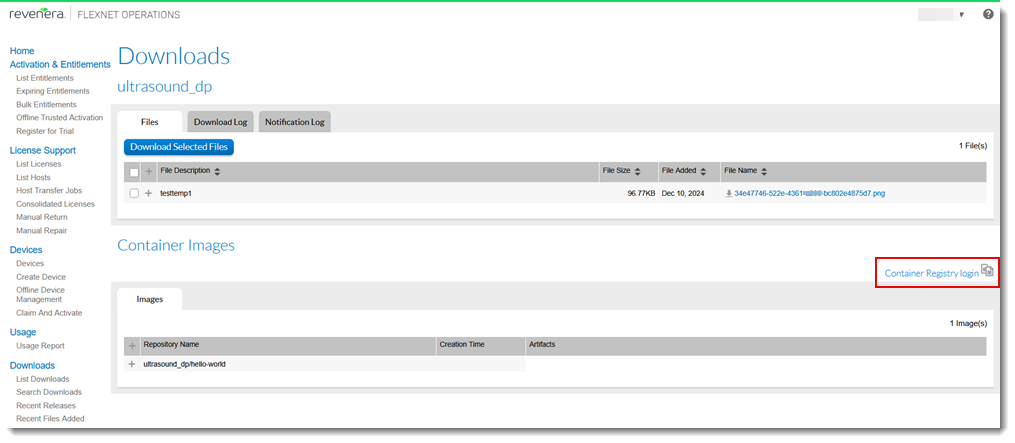
The Downloads page of the End-User Portal with the new Container Registry login button.