Using Access Token Controller (Configurable Expiration)
To authenticate Revenera MCP Server using the access token controller authentication option, perform the following steps.
| • | Obtaining an Access Token |
| • | Entering the Access Token in the Agent |
You can obtain an access token either using the FlexNet Operations Producer Portal or using REST API:
| • | Obtaining an Access Token Using the FlexNet Operations Producer Portal |
| • | Obtaining an Access Token Using REST API |
Obtaining an Access Token Using the FlexNet Operations Producer Portal
To obtain an access token using the FlexNet Operations Producer Portal user interface, perform the following steps:
To obtain an access token in FlexNet Operations:
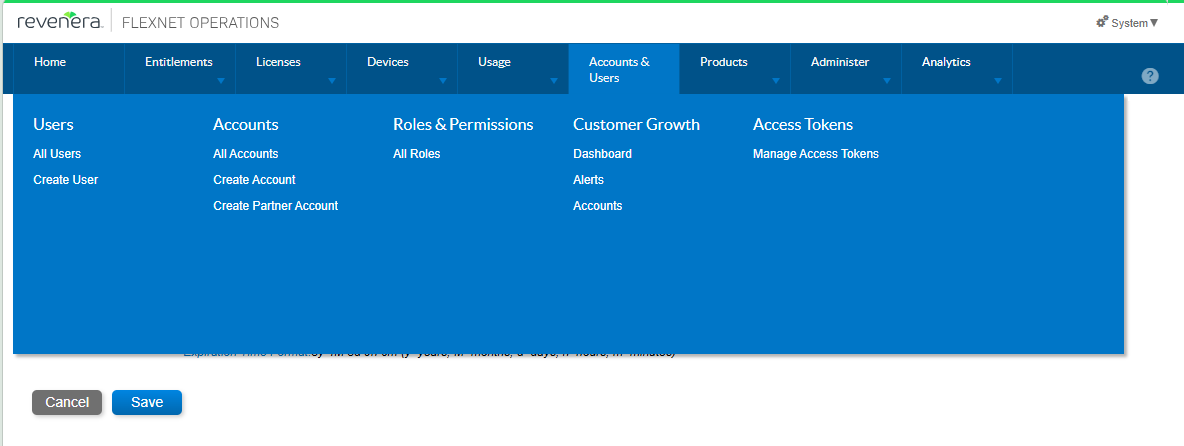
| 1. | In FlexNet Operations, select Accounts & Users > Manage Access Tokens. The Create Token page opens: |
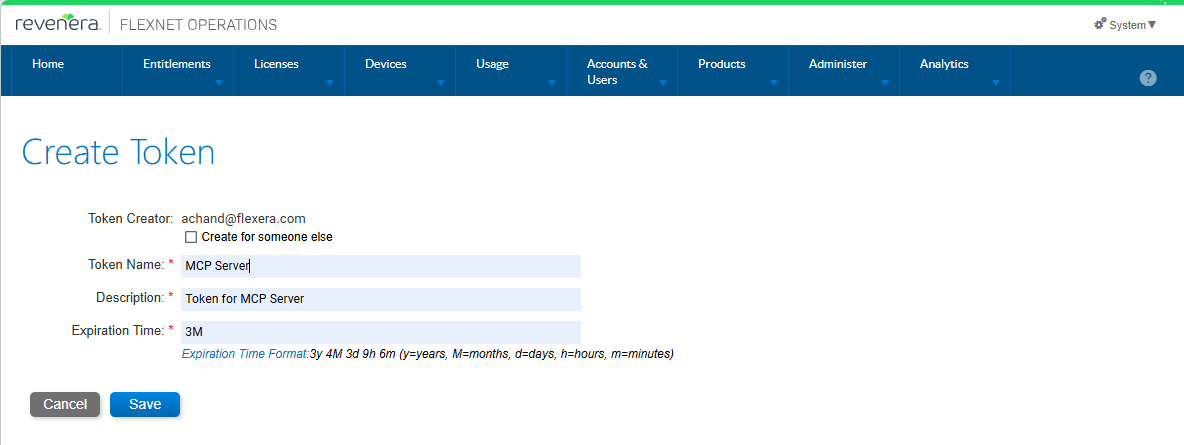
| 2. | On the Create Token page, enter a Token Name, Description, and Expiration Time using the format of: |
3y 4M 3d 9h 6m (y=years, M=months, d=days, h=hours, m=minutes)
| 3. | Click Save. A success message is displayed and the Token Value field is populated. |
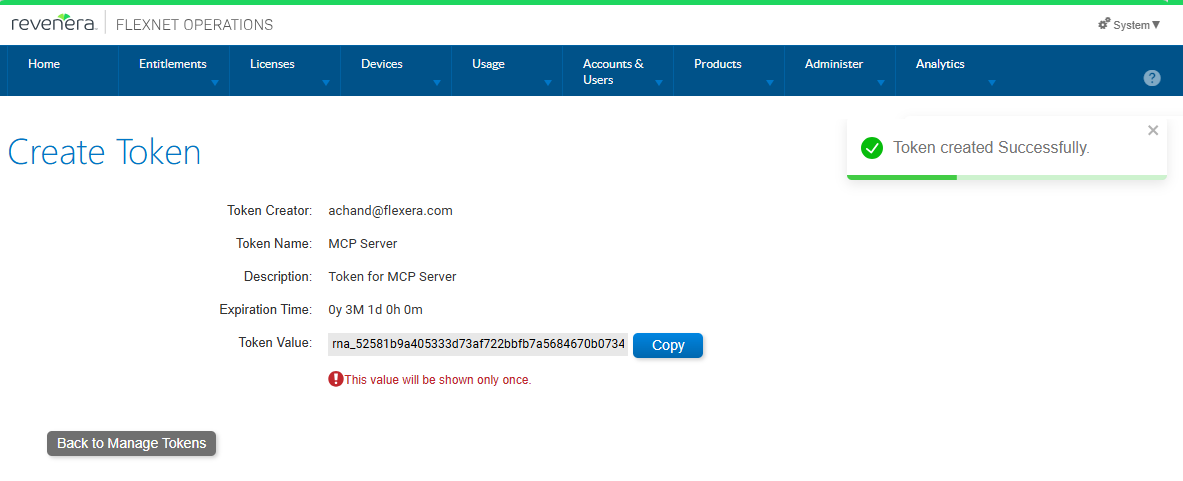
| 4. | Click Copy next to the Copy Value field and save the token value in a permanent location. |
Important:The token value will be shown only once, so be sure to copy the value to a permanent location.
| 5. | Continue with the steps in Entering the Access Token in the Agent. |
Obtaining an Access Token Using REST API
To obtain an access token using REST API, perform the following steps:
To obtain an access token using REST API:
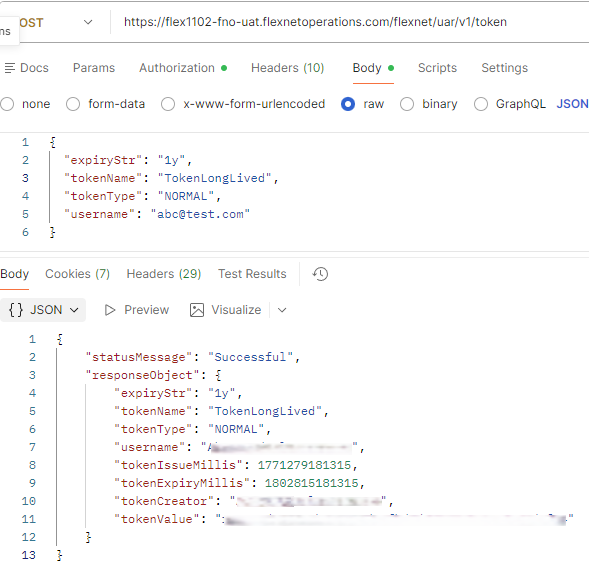
| 1. | Use the Access Token Controller REST API to obtain a token, as described in Create an access token. |
| 2. | Provide the expiry for the token as desired. |
| 3. | Continue with the steps in Entering the Access Token in the Agent. |
Entering the Access Token in the Agent
Perform the following steps to enter the access token in the agent.
To enter the access token in the agent:
| 1. | Obtain an access token, as described in Obtaining an Access Token. |
| 2. | Copy the tokenValue to use in the Agent. |