Download Manager
Note:A user must be assigned a role with the View Reports permission to manage their reports in the Download Manager.
The Download Manager provides a central location to view, download and delete your exports.
Exported files are created using the Download button available in the reports in the Analytics Hub and from Producer Shared Reports (out-of-the-box and custom reports). For more information, see Downloading Reports.
All downloads expire 7 days after creation and are automatically deleted.
To open Download Manager, open the Analytics menu and click Download Manager.
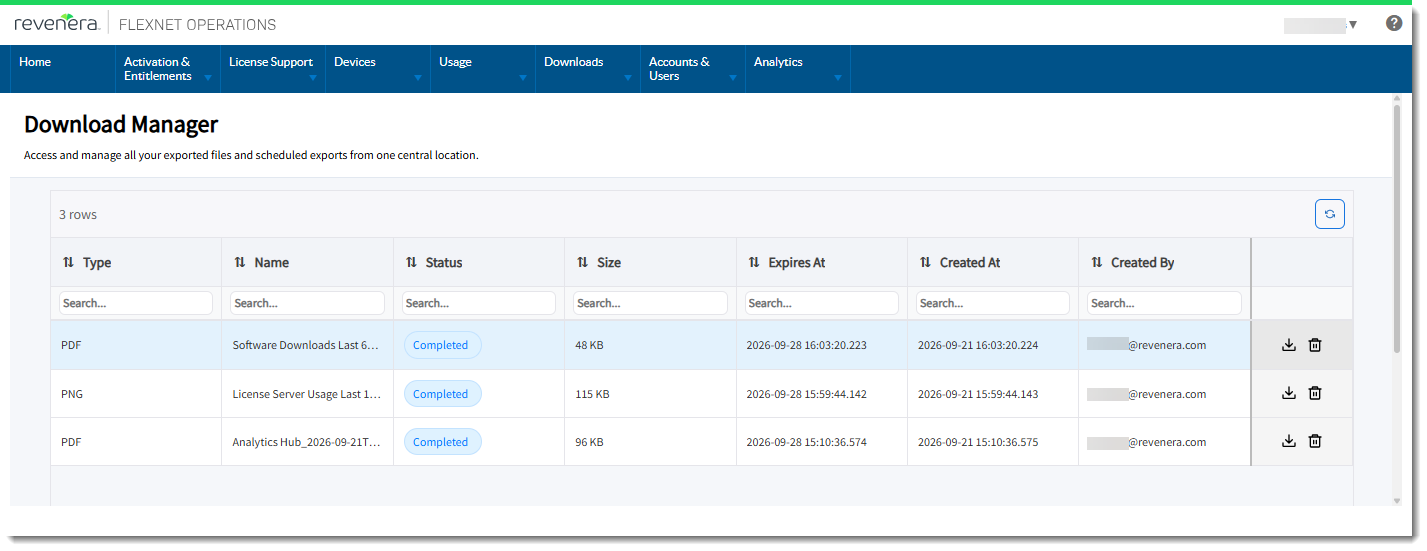
An example of the Download Manager.
Viewing and Managing Downloads
Download Manager displays a list of all exported reports available to the current user, along with information about each file:
|
•
|
Status (available values: Processing, Completed, Failed) |
You can perform the following tasks in Download Manager:
|
•
|
To download a file, click the Download icon  . The file is downloaded to your computer. . The file is downloaded to your computer. |
|
•
|
To delete a file, click the Delete icon  and confirm the deletion in the Confirm Delete dialog. and confirm the deletion in the Confirm Delete dialog. |
Important:You can delete only exports that you created.
|
•
|
To sort the list, click a column header. |
|
•
|
To search for a file, enter a search string in the Search box in the appropriate column. |
|
•
|
To refresh the list, click the Refresh icon  in the top right corner. in the top right corner. |