Downloading Reports
Note:A user must be assigned a role with the View Reports permission to download reports.
You can download reports and visuals in print-friendly formats such as PDF, as well as data dumps to CSV for further analysis in other tools such as Excel.
You download Analytics Hub reports and producer-shared reports (out-of-the-box and custom reports) in the same way, using the Download button at the top of the report page:
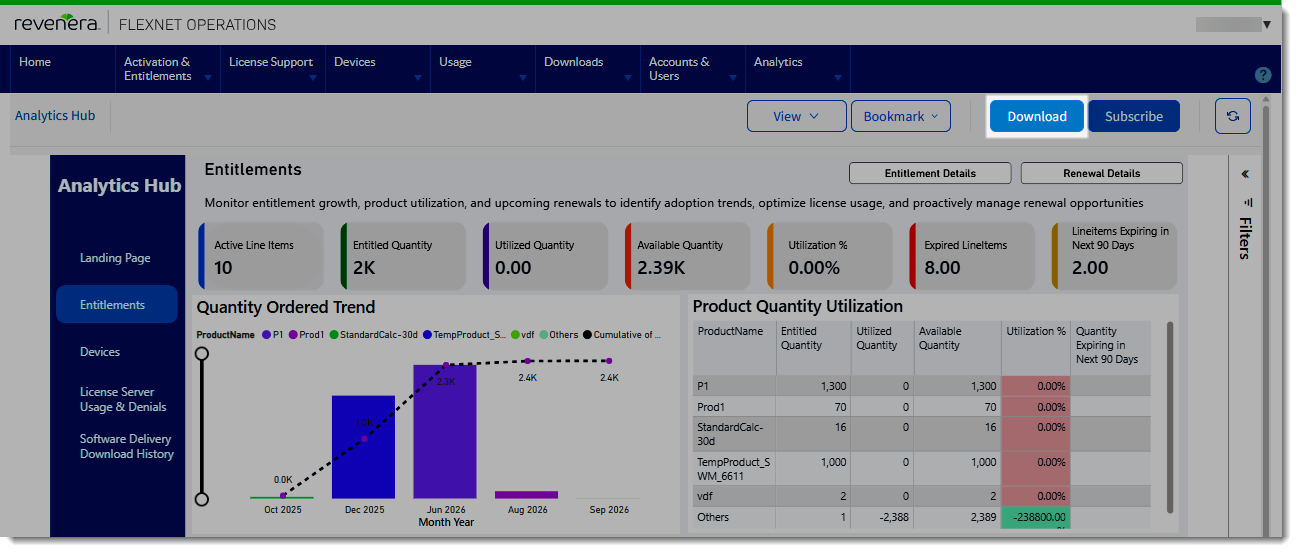
The Download button is located in the top right corner of every report page (out-of-the-box and custom reports).
Once created, you can then view, manage, and download your reports using the Download Manager (see Download Manager).
To download a report
| 1. | From the Analytics menu, open the report you want to download. This can be a report under the Analytics Hub or from the Producer Shared Reports menu. |
| 2. | Click the Download button located in the top-right corner of the report page. The Download Report dialog is displayed. |
| 3. | In the Download Report dialog, select your download options: |
| • | File Name—Specify a file name or accept the suggested file name. A timestamp (UTC time) is automatically appended to ensure uniqueness. |
| • | Format—Select the desired download format from the Format dropdown menu (see also Download Formats). |
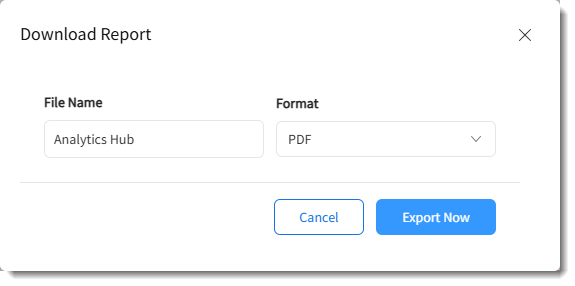
In this example, FlexNet Operations creates a report called Analytics Hub_2026-09-21T15-10-36.pdf (with the timestamp denoting the time when the download was created), which is available for download from the Download Manager.
| 4. | Click Export Now. |
The report is exported in the format that you specified. Open the Download Manager to download the report.
Tip:For information about managing your exports, see Download Manager.