Customer Workflow and Actions
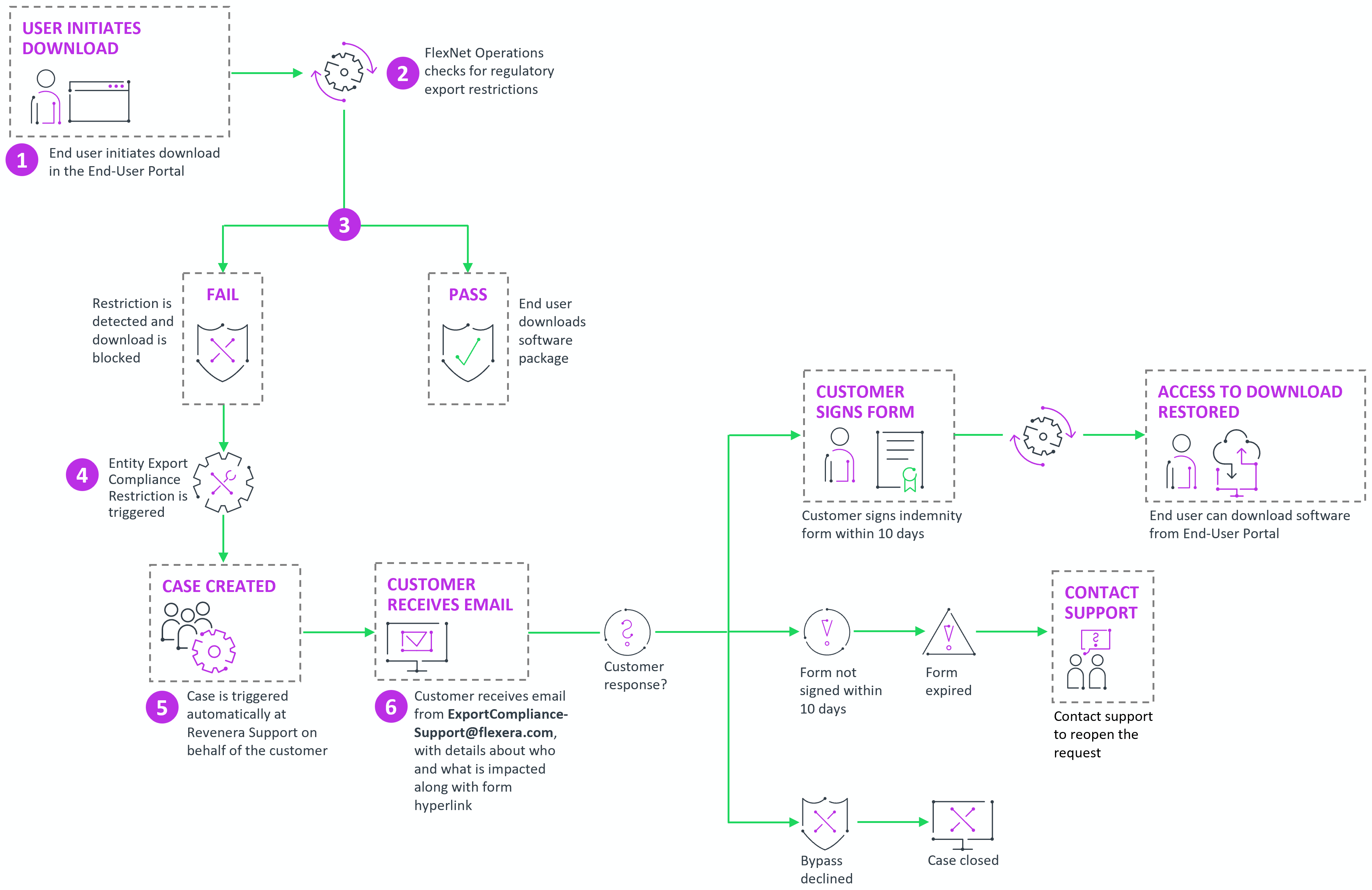
The workflow for the automated export compliance check consists of the following steps:
The following diagram provides a visual overview of the automated export compliance workflow, from the initial compliance check to final resolution. It illustrates the sequence of system actions and required customer steps.
Configure Prerequisites and Setup
Before the Export Compliance Automation process is enabled, your company’s IT administrator must complete the following preparatory steps:
|
•
|
Update Approved Senders List—Add the following email address to your approved senders list to prevent communication issues: exportcompliance-support@flexera.com |
Emails received from this address will have the following subject line: “RE: Case # <Case Number> - Export Compliance Failure - <Tenant ID>”
|
•
|
Update Recipient Email Address (optional)—Export Compliance notifications will continue to be delivered to the same email addresses currently used in the manual process. If you would like to update the recipient email address, open a case through the Support Hub (customer login required) or contact us at support@revenera.com. |
|
•
|
Review Internal Security Guidelines—Review and update any internal security, firewall, or email filtering rules to ensure that: |
|
•
|
Automated emails are not blocked |
|
•
|
Attachments and hyperlinks from Adobe Acrobat Sign are allowed |
Receive Approval Request Notification Email
When the Export Compliance Automation workflow is initiated, your designated recipient email address will receive an automated Approval Request Notification Email.
The email is sent from exportcompliance-support@flexera.com and provides key details to help you identify the affected account or user. It includes the following information:
|
•
|
Account or user/member name |
|
•
|
Name of the product/download package |
|
•
|
Link to the indemnity form |
Complete Indemnity Form in Adobe Acrobat Sign
Completing the indemnity form is a mandatory step in the Export Compliance Automation workflow. After receiving the Approval Request Notification Email, the approver must use the link provided in the email to open the indemnity form in Adobe Acrobat Sign.
To complete the approval process, the reviewer must:
|
•
|
Review the indemnity form carefully. |
|
•
|
Provide their name and email address. |
|
•
|
Approve or decline it directly in Adobe Acrobat Sign. |
Only approvals completed through Adobe Acrobat Sign are accepted. Any other forms of approval (including email replies, attachments, or alternative written approvals) will not be processed.
Completion Timeline
Approvals must be completed in Adobe Acrobat Sign within ten (10) days. A reminder email will be sent on the ninth (9th) day if no action has been taken. If not completed within this period, the indemnity form will expire automatically and the bypass request will be closed.
If the indemnity form has expired and you wish to reopen the request later, create a support ticket by emailing support@revenera.com. Include the relevant case number for reference.
After the Form Is Signed
Once the indemnity form has been signed:
|
•
|
The request is processed automatically. |
|
•
|
A confirmation email is sent to the recipient email address you provided. |
|
•
|
Download access is restored without further manual intervention. |
|
•
|
You can now inform the restricted user that download access has been successfully restored. |