User Experience Enhancements in 2026.08
The following user experience enhancements were added in the 2026.08 release:
| • | Device Quick Search on the End-User Portal Home Page |
| • | Tooltip Support for Custom Attributes When Creating Entitlements |
Device Quick Search on the End-User Portal Home Page
(Case 04878420)
The Quick Search widget on the End-User Portal home page (introduced in 2026.07, see Quick Search for Entitlements in End-User Portal) now also includes devices as a search option, enabling end users to find device records directly from the home page without navigating to the Devices page first.
Using the Quick Search widget, users can search for devices using any of the following criteria:
| • | Device Name |
| • | Device ID |
| • | Account Name |
| • | Account ID |
| • | Entitlement ID |
| • | Activation ID |
| • | Product Name |
Search results open the Devices page listing matching devices directly.
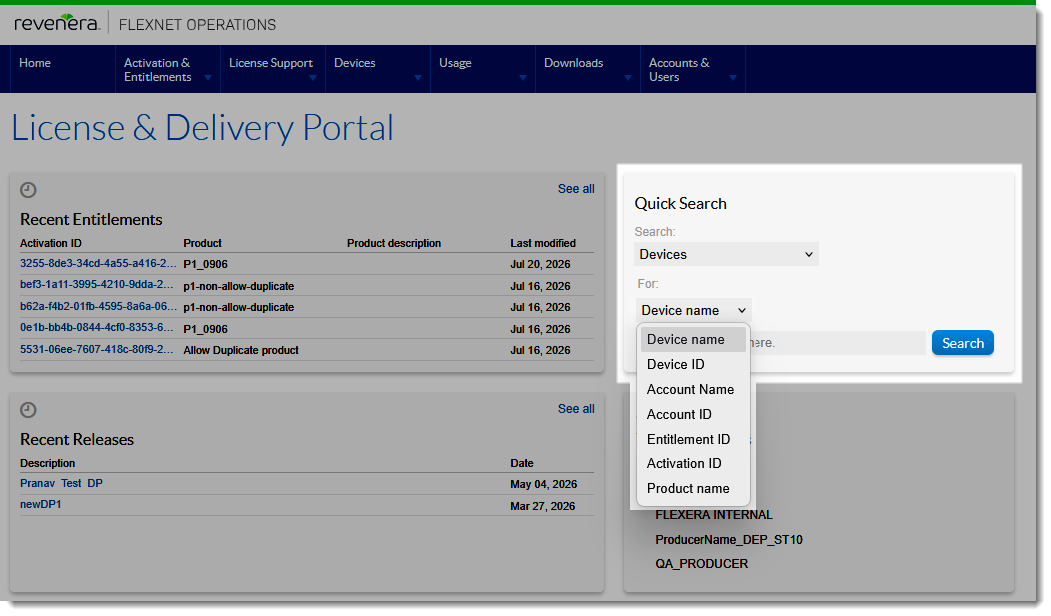
The Quick Search tile with the Devices option for quickly locating devices that match specified search criteria.
Configuration and Access Control
Visibility of the Devices option in the Quick Search widget is controlled by a combination of system configuration and user permission. Both conditions must be met for the option to appear. If either condition is not met, the Devices option is not displayed; no error message is shown to the user.
| • | The system configuration Hide Devices menu (under System > Configure > End-User Portal Setup > Portal Navigation) must be unselected. |
| • | The logged-in user must have the View Devices permission (listed on the Edit Role page under Account Permissions - End-User Portal). |
The Quick Search widget itself is displayed only when at least one search option—Entitlements or Devices—is available to the logged-in user. For the conditions that control visibility of the Entitlements option, see Quick Search for Entitlements in End-User Portal.
Tooltip Support for Custom Attributes When Creating Entitlements
(Case 04861406)
You can now add tooltip help text to custom attributes on the Entitlement page, making it easier for users to understand the purpose and expected values of each field.
What's New
When creating or editing an entitlement-type custom attribute, a new Tooltip Text field is available. Any text you enter here is displayed as a help icon  next to the attribute label on the Entitle Customers to Licenses | Create an Entitlement page. Hovering over the icon shows the configured tooltip text—the same behavior as the existing Description field.
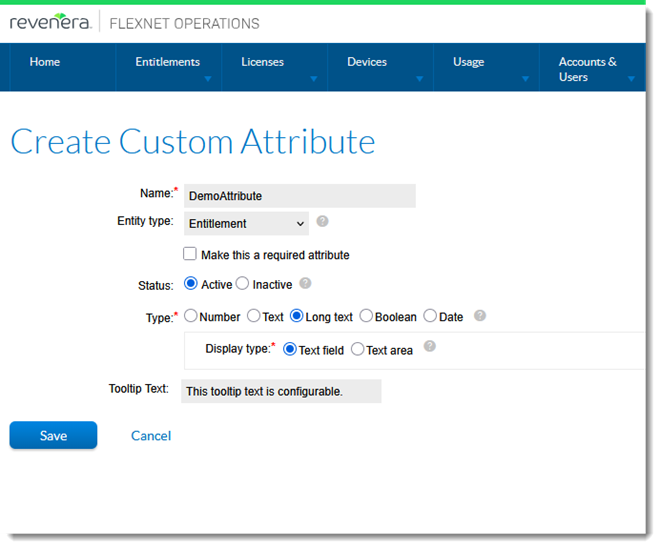
The Tooltip Text field on the Create Custom Attribute page.
Key Details
| • | Tooltip text can be added during custom attribute creation and edited afterwards. |
| • | Maximum tooltip length: 500 characters |
| • | Tooltip text supports plain text only. |
| • | The help icon only appears for attributes that have tooltip text configured. |
| • | Existing custom attributes are unaffected—if no tooltip text is defined, the attribute is displayed as before. |
| • | This enhancement applies to entitlement-type custom attributes only. |
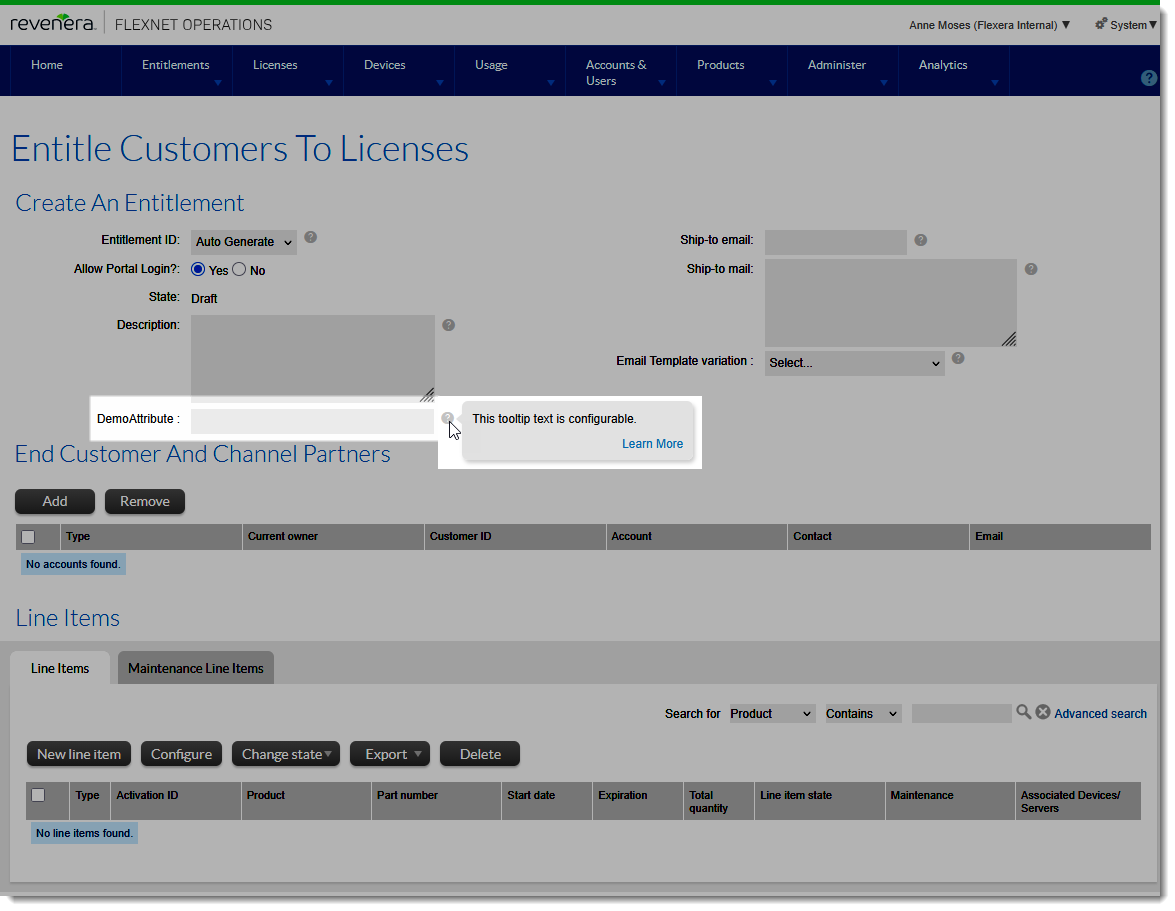
Hovering over the Help icon displays the configured tooltip text for the custom attribute.