Mapping an Add-On Using an Activation Code
Using the .NET Toolbox device application, you can map an add-on with an activation code. Use the following steps to map an add-on with an activation code.
To map an add-on using an activation code:
|
1.
|
From the Producer Portal, select the Manage Hosts menu then click List Identities. |
|
2.
|
Click the Identity Name. This opens the identity’s View Identity page. |
|
3.
|
Under Identity Files, find Download Client Identity and click Binary File. Download behavior varies depending on the web browser you are using. |
|
4.
|
Save the binary client identity file (IdentityClient.bin) to your machine. |
|
5.
|
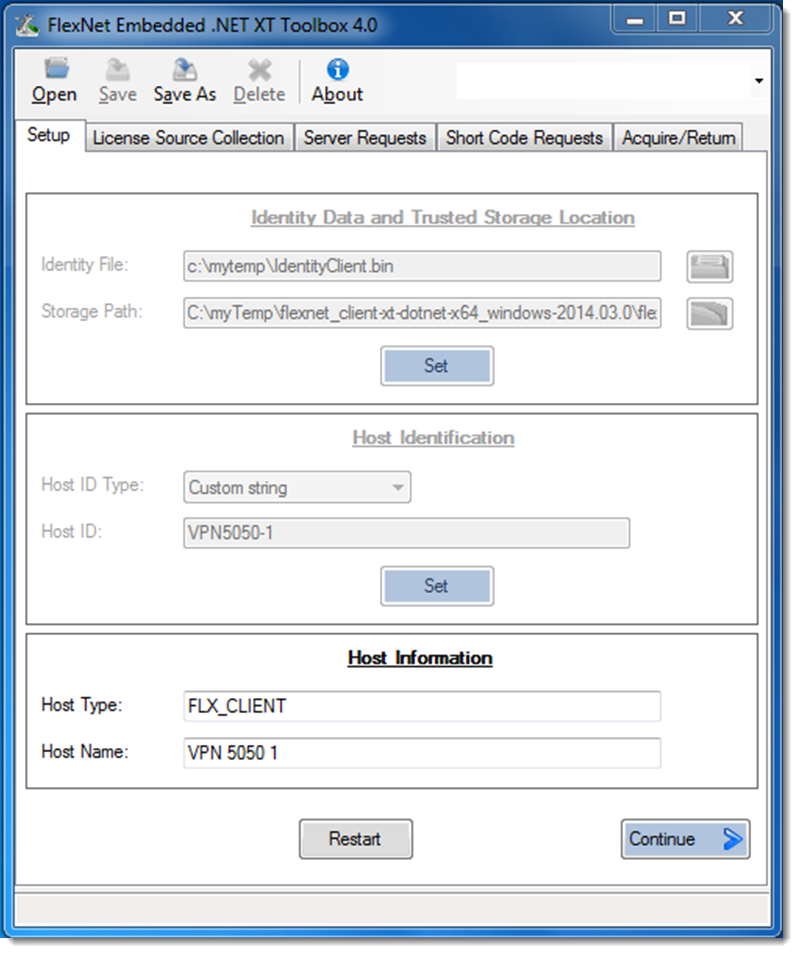
Open the .NET Toolbox device application from <installdir>\bin\demo\toolbox\DotNetDemo.exe. The Setup tab appears. |
|
6.
|
Click the folder icon next to the Identity File field and browse the location where you saved the client identity .bin file. Double-click the .bin file. The file path is populated in the Storage Path field. |
|
7.
|
Click Set. When the identity data is set, the Host Identification fields are enabled. |
|
8.
|
For Host ID Type, select Custom string. |
|
9.
|
For Host ID, type the Device ID of the device you created in Adding a Device. For this example, use VPN5050‑1. Click Set. |
|
10.
|
Type the device model name in the Host Type field. For this example, use the default device model name, FLX_CLIENT. |
|
11.
|
Type the device alias in the Host Name field. For this example, use VPN 5050 1. |
|
12.
|
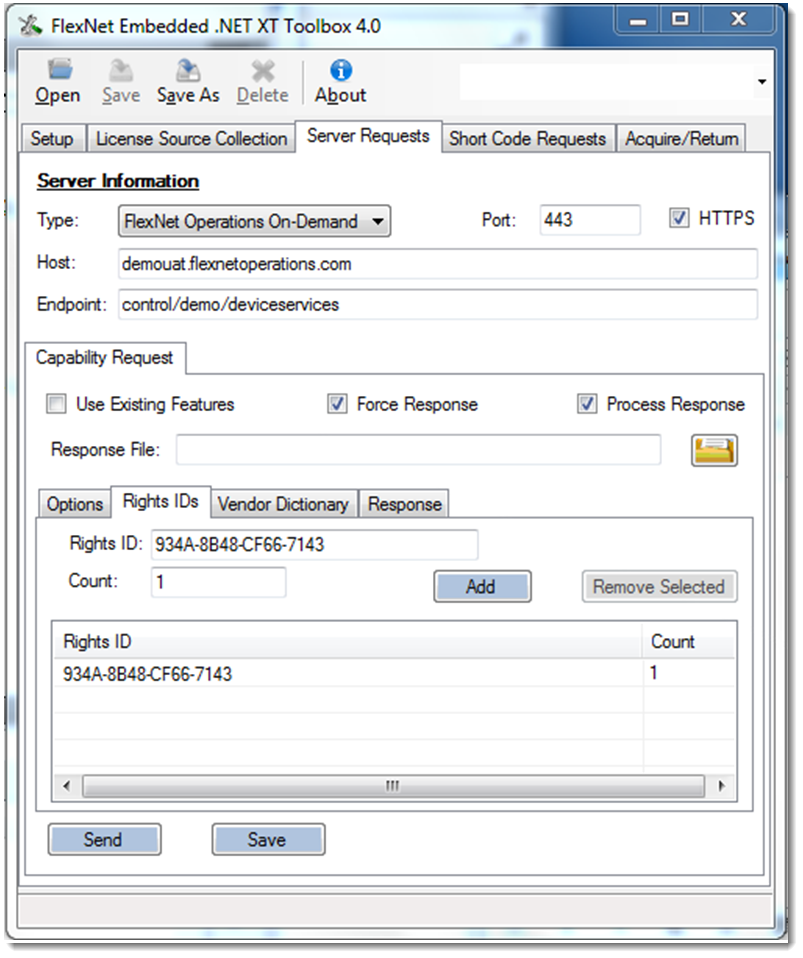
Click the Server Requests tab. |
|
13.
|
Select FlexNet Operations On-Demand from the Server Type drop-down menu. The Host, Port and Endpoint fields are updated. |
|
14.
|
Type <your_site_name>uat.flexnetoperations.com into the Host field. |
|
15.
|
Type the activation code for a particular add-on in the Rights IDs field and type the number of units in the Count field. |
Note:This example shows 934A-8B48-CF66-7134 for the activation code and 1 for the count. This is an example only. You need to type the unique activation code for the add-on you are mapping.
|
16.
|
Click Add. The activation code appears in the Rights ID column. |
|
17.
|
Click Send to send the request. |